Memberships can be sorted into 3 types in terms of how they are created: Individual, Group, and Punch card.
An Individual Membership is a plan for a single member, can be recurring or prepaid and has term options.
A Punch Card Membership is always for a single member and can be recurring, or prepaid. To learn about Punch Cards, please click HERE.
A Group Membership is a group plan for 2 or more members who will be governed by terms and dates of the same plan. It can be prepaid or recurring and has options for terms and limits. These plans can be paid by a designated primary member or split among the members. To learn about Group Memberships, please click HERE.
Membership Plans must be created at the OE level to be sold. Because iGo360 allows different prices per location, once plans are made, price and tax rate must be edited at the Club Level in each location by employees who have the appropriate Security Profile. All other edits must be done at OE level. Note the warning messages about changing Membership details after the Membership has been sold.
A prospect can be converted to member from the Prospect's Record. When converting, there are 2 choices, start a new individual plan CONVERT TO MEMBERSHIP or join an existing group plan ASSIGN TO EXISTING MEMBERSHIP. Below is how to convert a Prospect from the Prospect's Record as an individual member.
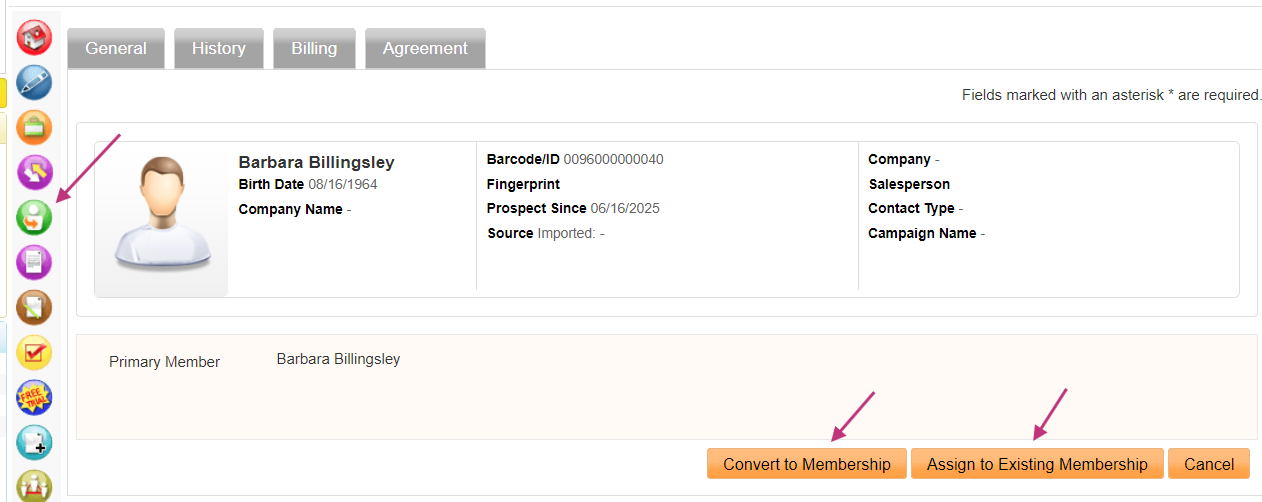
 button on the Prospects Relate Bar.
 > Sign Up
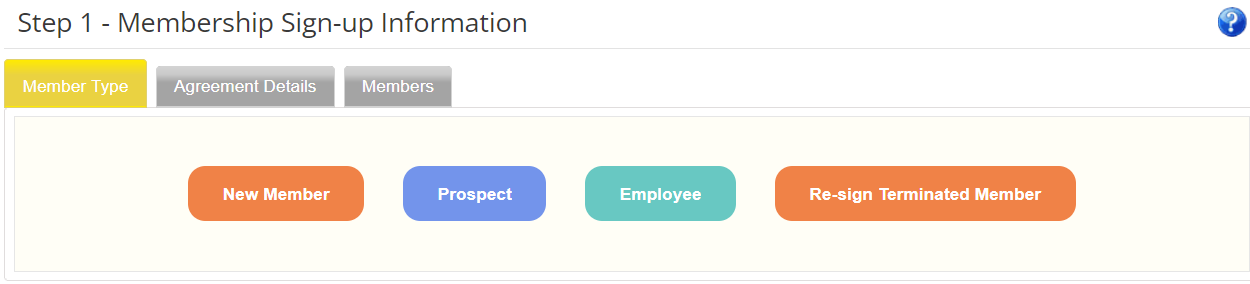
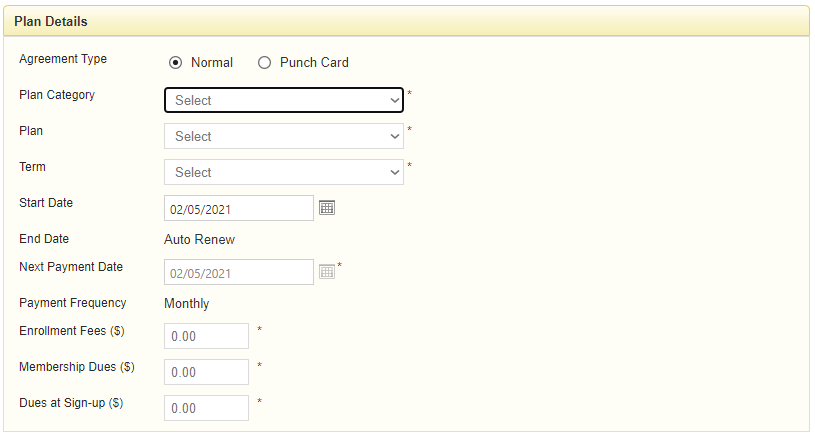
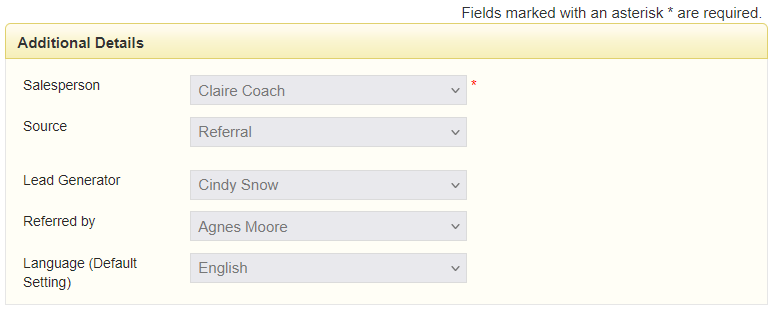
Once all information is entered, click Next.
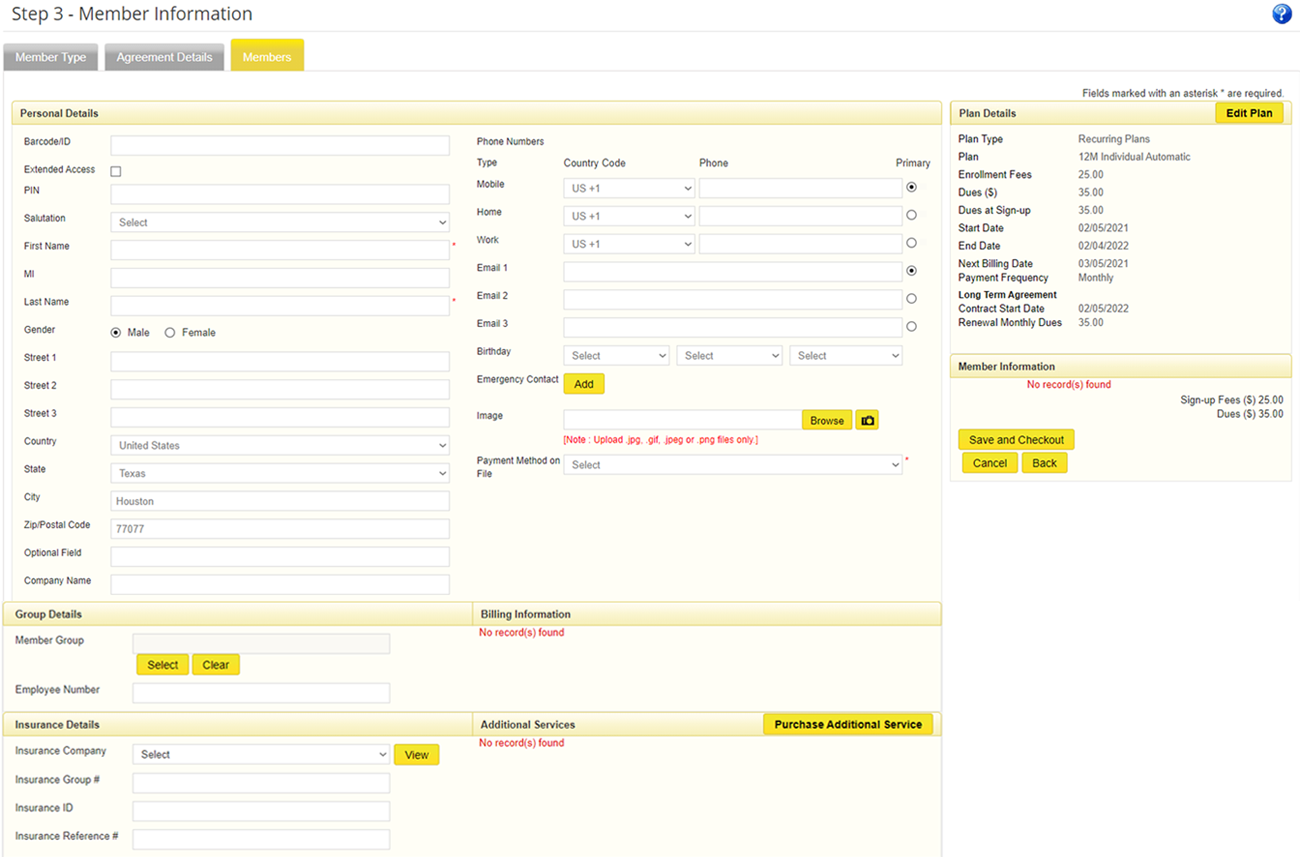
Fill all required fields marked by a Red Asterisk (*). Optional fields can be filled as needed.
Payment Method on File will be used to charge the member. Statement is not available at signup unless "On Account" is selected. Learn more about payment methods HERE.
Click Save and Checkout when finished.
For steps to continue with Checkout, click HERE.
