To view all members, click on Member  > View All
Lets look around the Member List -
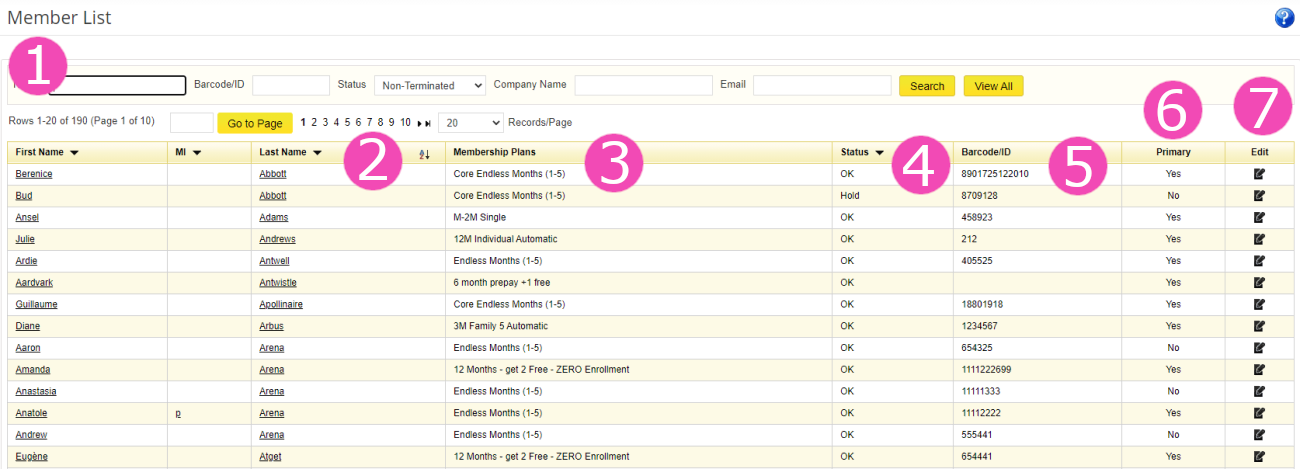
The Member Records are where the members' information is held; each record contains different tabs to categorize the information making it easy to find.
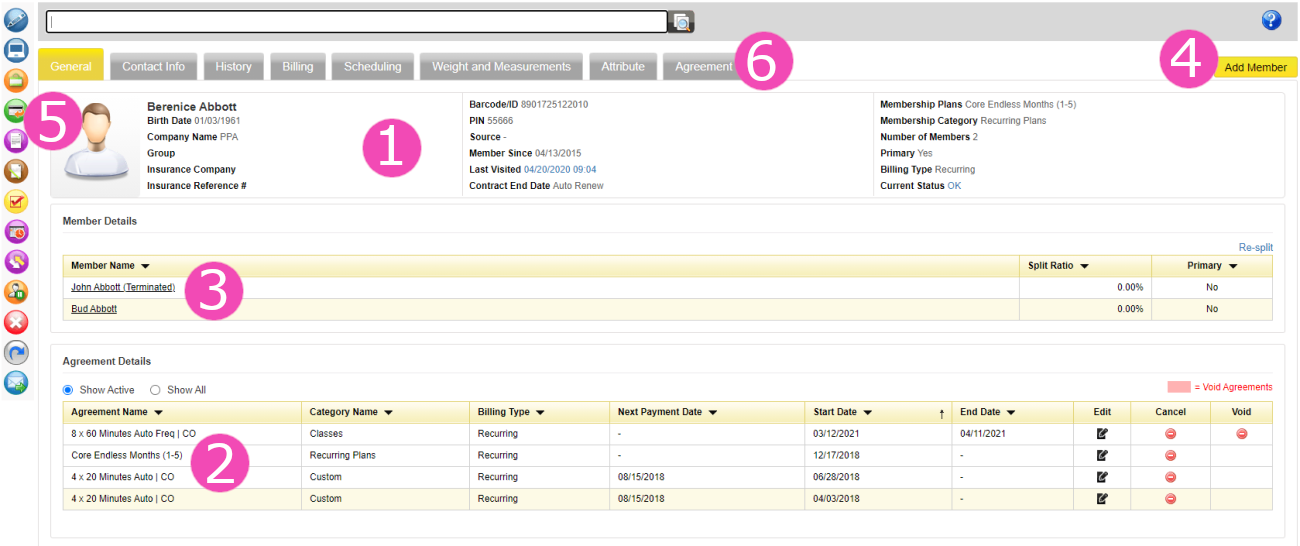
Learn more about status changes HERE
Note: Terminated members can be reinstated by selling them a new membership from the member record by clicking the Convert Membership button on the Relate Bar or under the Member Control > Sign-up Menu selecting Re-Sign Terminated Member.
Learn more about Joint Memberships HERE
Below is a picture and a description of each button:
 Edit: Allows you to edit the member's information including their name, contact information, emergency contact, add a photo, turn on/off their Email and SMS subscriptions, and the option to apply credit from (if member has any) automatically when the billing service runs.
Note: Members can self unsubscribe from emails from the message they receive. However, the following notifications will still be sent: Invoices, Statements, Credit Card Expiring, Failed Payment, and Coming off Hold Notices, All Electronic Agreements documents, and Login Information will still be sent.
 Welcome Screen Settings - For facilities that use the Welcome Screen feature, a screen that faces members when they sign in, this button allows entering an individual message for the member to be displayed when they sign it.
 POS (Point of Sale) - This button allows you to sell inventory, additional services, courses, sessions, and gift cards to the member.
 Credit to Account - This button gives credit to a member's account, it is either paid in advance by the member to be used for a future invoice or a complimentary credit gifted by the club. You can learn more about Credit on a Members Account HERE
Note: Credit to Account is NOT for refunds.
 Document - This button uploads documents to member's record.
 Note - This button allows you to create notes realted to the member for internal staff communication.
 Task - This button allows you to assign and edit a calendar tasks/appointment for the member.
 Schedule - This button is to schedule sessions and classes purchased by the member.
 Change Status - Manually changes member's billing status. You can learn more HERE
 Hold - Puts member on hold for a set period of time.
 Cancel - This button allows you to cancel a member's Membership and all Additional Services. This will Terminate the Member.
 Convert Membership - Changes membership type and allows you to give a new membership to a Terminated member.
 Send Email - Allows you to send an email to the member.

