F106 - Group Membership

Overview:

Introduction

First thing to note is that the Membership Plan you are selling will need to be set up as a Group Membership to sell it as such. If it is not, you will not be able to add in an additional member.

There are several ways to add a Member to a Group Membership. We will be going from adding one at Sign Up, and later when one Member already exists in the system and is adding an additional member to their membership.
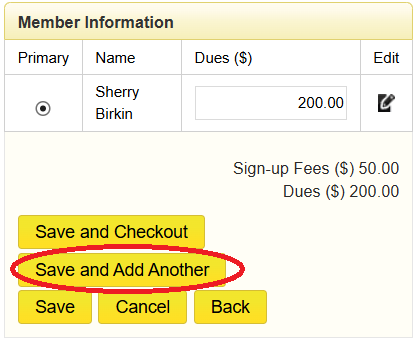
Entering Additional Members at Sign Up

  1. Follow the membership entry process as usual until you reach the Step 3 Screen of entering an Individual Membership. Instead of clicking Save and Checkout, click Save and Add Another after filling in the required fields.
  2. A message will appear asking what type of member you would like to add to the membership. You can select New Member, Re-sign Terminated Member, or Prospect.
  3. If you are creating a New Member, that is not currently a Prospect or a Terminated Member, then input their information in the next step.
  4. If you are choosing either Prospect or Re-sign Terminated Member, this will take you to a page where you can select the person to add to the Group Membership.
  5. If you are finished adding all of the members, click Save Member and Checkout Out. If you would like to add more, click Add Another until you are ready to checkout.
  6. NOTE: You will only be allowed to add as many members as the plan allows. If you cannot add any more members to a plan, then you either need to go back and select a different plan or the current one needs to be reconfigured to allow multiple members. Plans can be adjusted in the Owner Entity (OE) Tier

  7. The Checkout screen will appear as normal. Add other items to the transaction if you wish. If you need help navigating the checkout menu, click Here for instructions.

Adding New Members to an Already Established Membership

There are 3 ways to add in a person to a Group Membership with a member that already has a membership.

When converting a Prospect to a Member.
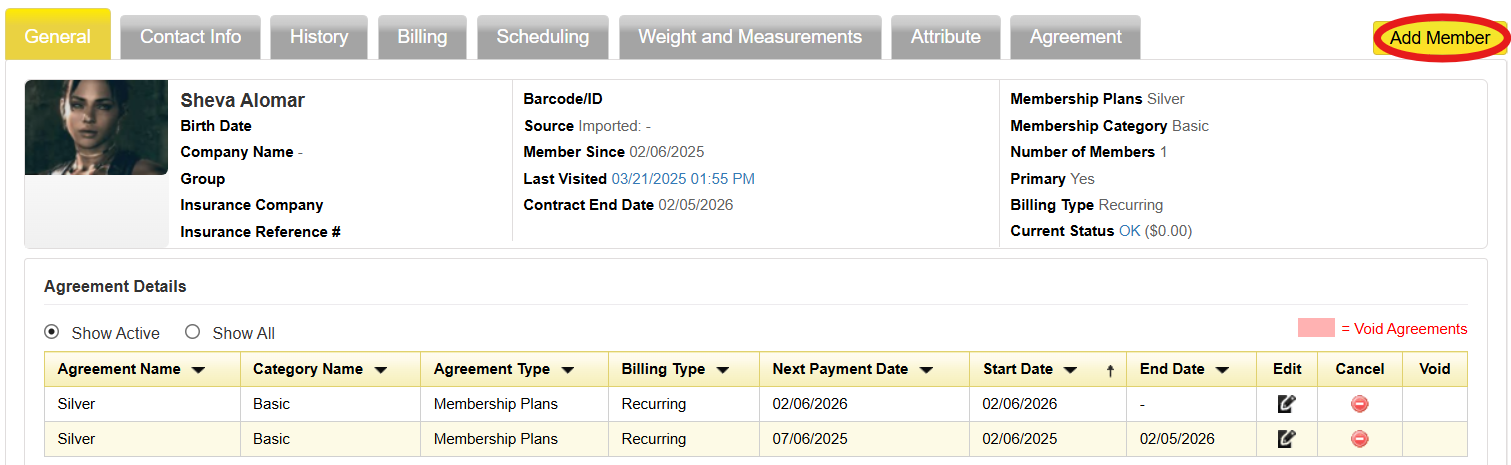
In the Members Record if the member has a membership that allows additional members.

When Re-signing a Terminated Member.

In each of these options you will need to select the person you are signing up as a new member and the member that they will be joining.


We regularly update the iLearning Center; if you come across any broken links, please don't hesitate to let us know.