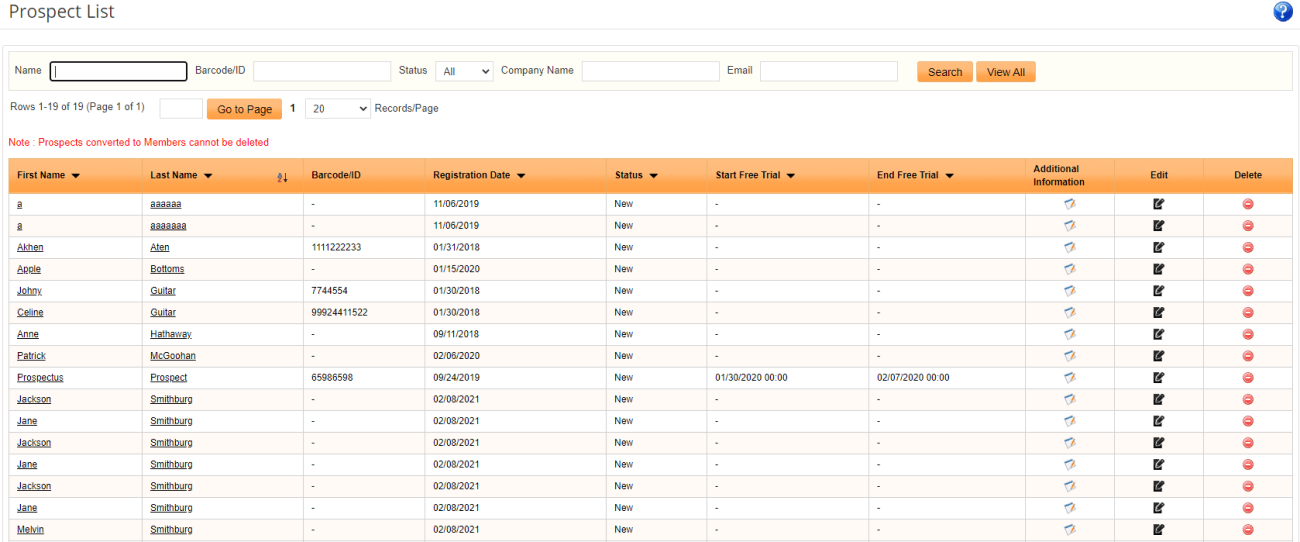
A prospect is a person who is interested in joining your club but hasn't joined yet or will join at a later date. iGo360 allows you to record the prospects' information including contact information, payment methods, notes, relationships, sales and receipts, etc. and convert them to members at a later date when they commit and sign up for a plan.
 > View All
 > Sign up
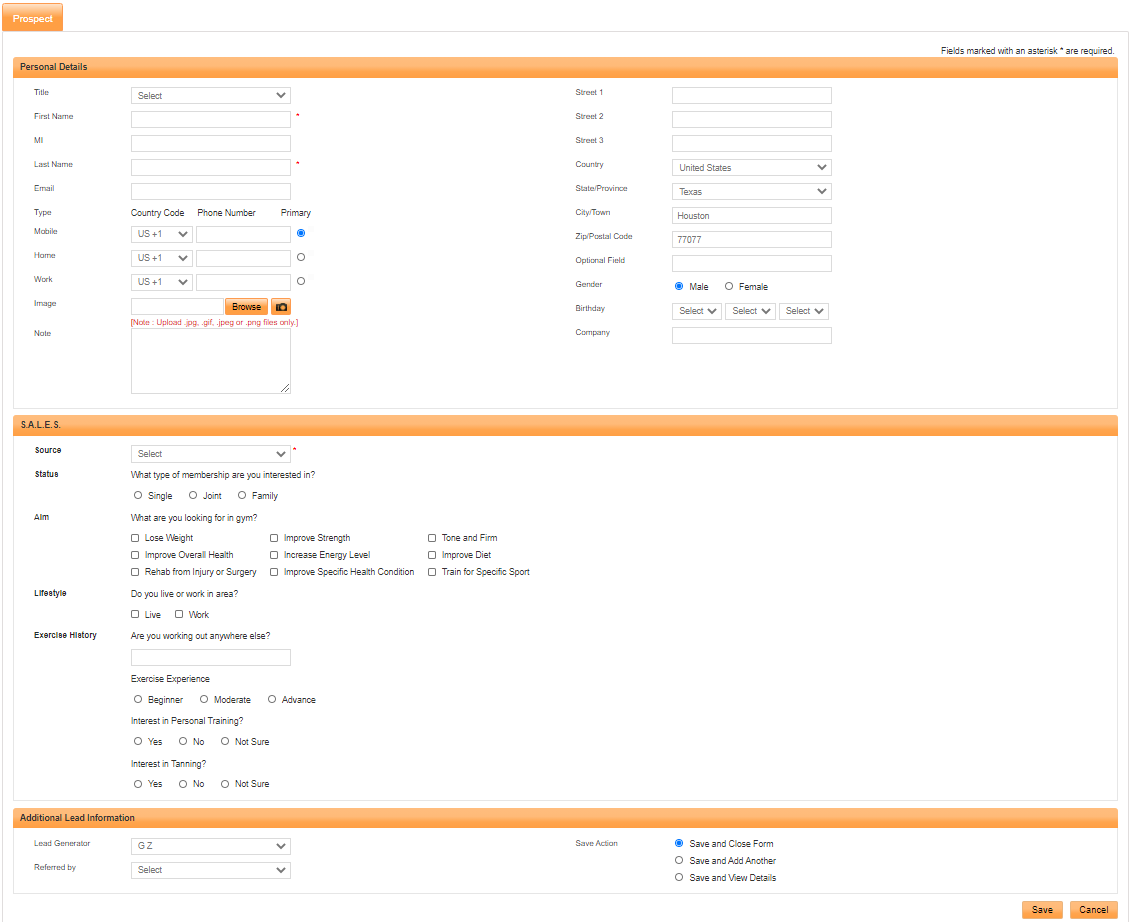 > View All

Below is a list of all of the Prospect Relate Bar buttons and their functions:
 Home - Takes you to the home screen of the prospect's profile.
 Edit - Use to edit the prospect's information.
 POS - Use to sell items and services to the prospect.
 Change Status - Use to change the prospect's status.
 Convert to Member - Use to convert a prospect into a member.
 Document - Use to upload documents to the prospects profile.
 Notes - Use to add notes to the prospect's record.
 Task - Use to assign and edit a task.
 Free Trial - Use to give a free membership trial to a prospect. NOTE: Giving a free trial to a prospect does NOT make them members.
 Additional Information - Use to add additional information to the prospects record.
 Relationships - Use to add other contacts associated with the prospect.
 Send Email - Use to send an email to the prospect.
 Schedule - Use to schedule a first appointment or meeting with the prospect. on the Prospect Relate Bar
