F111 - Membership Conversions
Overview
In iGo360, a member can only have one active membership at a time. If a member wants to change membership plans before the membership is terminated, the membership must be converted.
Topics Covered
•Converting a Single Membership to a Different Single Membership
•Converting a Single Membership to a Group Membership
•Converting a Group Membership to a Single Membership
Converting a Single Membership into a Different Single Membership
The Convert Membership feature can be used to:
•Change a member to a different membership plan
•Schedule a future membership change
•Reinstate a terminated member
To convert a membership:
1.Open the member record
2.Click Convert Membership on the Relate Bar
3.Select the new membership plan
4.Verify the Start Date and Next Payment Date
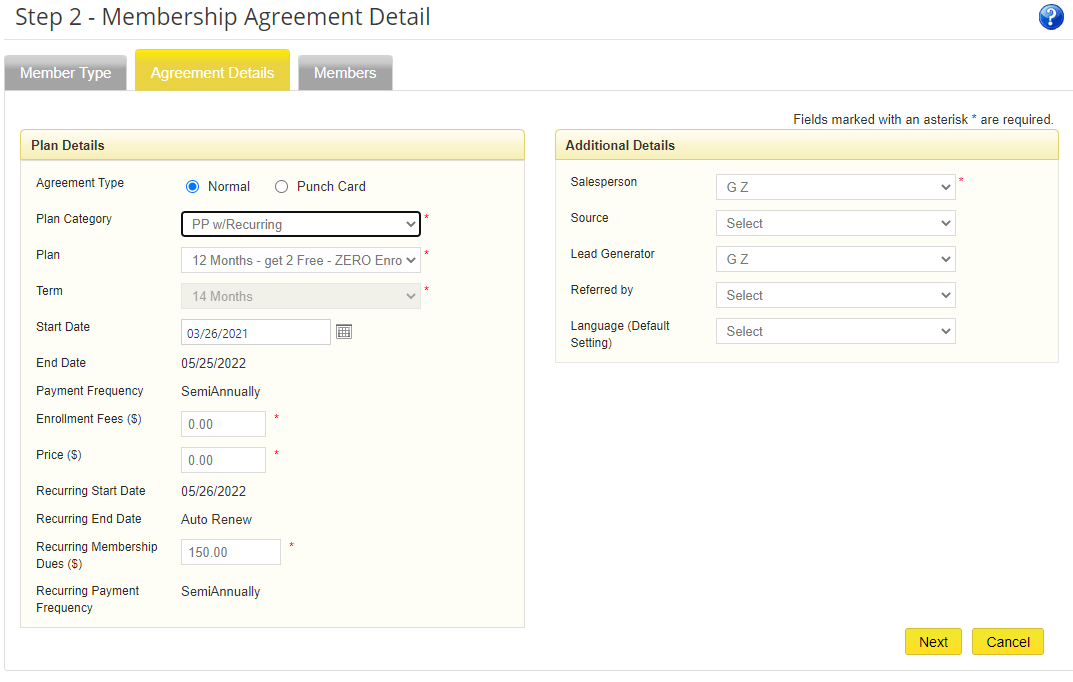
5.Click Next
6.Review the member's personal information and update if necessary
7.Click Save and Checkout
8.Continue through the Point of Sale (POS) process
Note: Refer to the POS documentation for instructions on completing the checkout process.
Converting a Single Membership into a Group Membership
To convert an existing single membership into a group membership:
1.Open the primary member's record
2.Click Convert Membership on the Relate Bar
3.Select a membership plan that supports group memberships
4.Verify or update the following:
•Plan Category
•Membership Plan
•Start Date
•Next Payment Date
•Enrollment Fee
•Membership Price
5.Click Next
6.Review the member's personal information and update if necessary
7.Click Save and Add Another
8.Click OK on the confirmation message
Note: If the Save and Add Another button is not available, the selected membership plan is not configured as a group membership in the Ownership Entity (OE), or you have reached the maximum number of members for this group.
9.Select the member type:
•New
•Existing Member
•Terminated Member
•Prospect
10.Enter or update the member information
11.Click Save and Add Another. Repeat Steps 8–10 until all members have been added
12.Click Save and Checkout
13.Complete the Point of Sale (POS) process.
Converting Group Membership
When a group membership changes, the appropriate action depends on the situation.
Scenario 1: Member Leaves the Club
Cancel the member who is leaving and adjust the membership price for remaining members or convert if applicable.
If one member is leaving permanently:
1.Open the departing member's record
2.Click Cancel on the Relate Bar
3.Select Cancel Only the Selected Member
4.If the departing member is the primary member:
•Select a new primary member
•Confirm the split rate
5.Complete the cancellation process
6.Adjust the membership pricing for the remaining members, if necessary
7.Convert the remaining members to a different membership plan if appropriate
Note: If the terminated member is not to remain associated with the group membership, terminate the entire group membership and create a new membership for the remaining members.
Scenario 2: All Members are Separating into Individual Memberships
If all members will have separate memberships:
1.Open the primary member's record
2.Click Cancel on the Relate Bar
3.Select Cancel the Entire Membership and All Associated Members
4.Complete the cancellation process
5.Re-sign each terminated member to a new membership
Scenario 3: Member Leaves the Group but Remains a Member
If a member is leaving the group membership and moving to another membership plan:
1.Open the member's record
2.Click Cancel on the Relate Bar
3.Select Cancel Only the Selected Member
4.If the member is the primary member:
•Select a new primary member
•Confirm the split rate
5.Complete the cancellation process
6.Create a new membership for the terminated member using the appropriate membership plan
Note: If the member is not immediately moving to a new membership plan, the member may remain in a terminated status until a new membership is created.
