F117 - Reports
Overview
The Reports module provides access to operational, financial, membership, attendance, inventory, sales, and prospect information. Reports can be filtered, saved for future use, exported, and marked as favorites for quick access.
Topics Covered
•Using Search Criteria
•Saving Report Searches
•Reusing and Deleting Saved Searches
•Exporting Reports
•Favorite Reports
•Report Categories
Introduction
iGo360 organizes reports into different categories, which can be viewed and selected by hovering over the Reports button on the control shortcuts and then accessed by clicking on the desired report
Search Criteria
Most reports include search criteria that allow filtering the information displayed.
Common filters include:
•Date Range
•Member Status
•Membership Plan
•Employee
•Payment Method
•Attributes
To filter a report:
1.Open the report
2.Select the desired search criteria
3.Select the appropriate checkboxes
4.Click Run Report
Note: Available search criteria vary by report.
Selecting a Date Range
Most reports include Start Date and End Date fields.
1.Select the beginning date
2.Select the ending date
3.Run the report
Note: The maximum date range for a report is one year.
Saving Report Searches
Frequently used search criteria can be saved for future use.
To save a search:
1.Open a report
2.Configure the desired search criteria
3.Click Save Search
4.Enter a name for the search
5.Click the Green Checkmark
6.Click OK to confirm
Saved searches reduce the need to recreate commonly used filters.

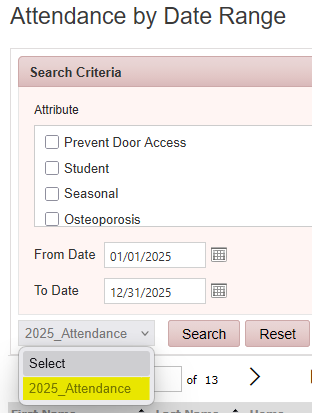
Reusing Saved Searches
To use a previously saved search:
1.Open the report
2.Locate the Select drop-down list
3.Choose the search saved
4.Run the report
The saved search criteria are automatically applied.
Deleting a Saved Search
To delete a saved search:
1.Open the report
2.Select the saved search from the Select drop-down list
3.Click Delete
Exporting Reports
Reports can be exported for sharing or additional analysis.
Supported formats include:
•Excel
•PDF
•Word
To export a report:
1.Run the desired report
2.Click the Save icon
3.Select the preferred file format
The report is downloaded using the selected format.
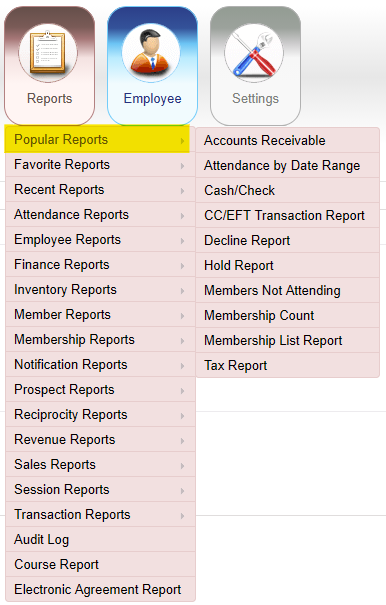
Popular Reports
Popular Reports default a list of most common used reports.
Favorite Reports
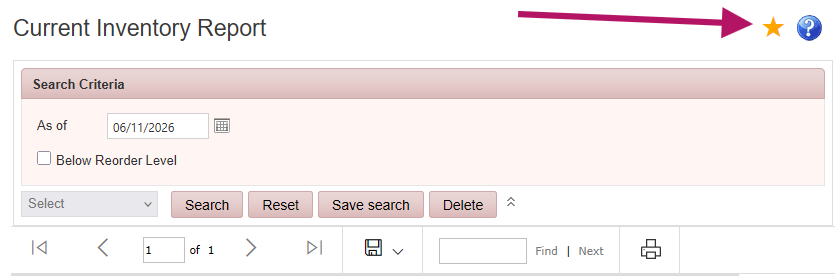
Frequently used reports can be added to the Favorite Reports category.
Adding a Favorite Report
1.Open the report
2.Click the Star icon in the upper-right corner
When selected, the star changes color to indicate the report has been added to Favorites.
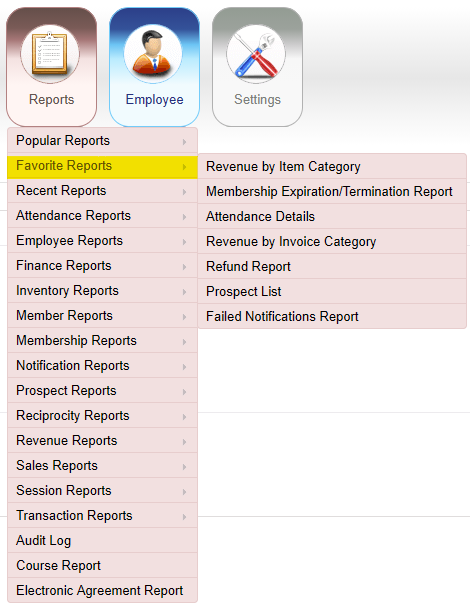
Opening a Favorite Report
1.Navigate to Reports
2.Select Favorite Reports
3.Choose the desired report
Favorite Reports provide quick access to commonly used reports.
Report Categories
iGo360 organizes reports into the following categories:
•Attendance Reports
•Employee Reports
•Finance Reports
•Inventory Reports
•Member Reports
•Membership Reports
•Prospect Reports
•Reciprocity Reports
•Revenue Reports
•Sales Reports
•Session Reports
•Transaction Reports
•Additional Reports
Finding Reports
To quickly locate a report within the documentation:
Windows
Press Ctrl + F and enter the report name
Mac
Press Command + F and enter the report name
Report Index
Attendance Reports
•Attendance by Date Range
•Attendance Total by Date Range
•Attendance Staffing
•Attendance Summary
•Attendance Details
•Invalid Scans
•Members Not Attending
•No Show Report
Employee Reports
•Employee Time Sheets
Finance Reports
•Accounts Receivable
•Cash/Check
•Billing Summary
•Club Billing by Member
•Credit Card Expiring
•Gift Card Report
•Gift Card Redemption Report
•Member Accounts Summary
•Member Dues Billing Detail
•Member Dues Billing Summary
•Not Billed Memberships – Post-Billing
•Not Billed Memberships – Pre-Billing
•Payment Method Lookup
•Payment Processing Report
•Pre-Billing Member Detail Report
•Refund Report
•Tax Report
•Void Invoice Report
Inventory Reports
•Current Inventory Report
•Item Sales Report
Member Reports
•Active Additional Service
•Add-on Member
•Converted Members
•First Time Appointment Report
•Group Report
•Hold Report
•Member Age Trend Report
•Member Birthdays
•Member Count by Status
•Member List
•Member Referrals Report
•Member Task Summary
•Members Assigned to Insurance Report
•Members by Attribute
•Members by Status
•New Members by Date Range
•New Member Follow-Up Request
•Wellness Account Balance by Member
•Punch Card Remaining Report
Membership Reports
•Membership About to Expire
•Membership Attrition
•Membership Count
•Membership Expiration/Termination Report
•Membership List Report
•Membership Sales by Date Range
•Status Change Report
Notification Reports
•Failed Notifications Report
•Subscription Report
Prospect Reports
•Company Report
•First Time Appointment Report
•Prospect List
•Prospect Tasks Summary
•Question/Answer Report
•Prospects by Source Summary
•Prospects by Status Summary
Reciprocity Reports
•Reciprocity Report
•Transfer Requests Report
Revenue Reports
•Revenue by Invoice Category
•Revenue by Invoice Category Billed
•Revenue by Item Category
•Revenue by Member by Date
Sales Reports
•Employee Commissions
•Sales by Owner Comp
•Sales Report
Session Reports
•Sessions Consumed
•Sessions Booked
•Sessions Remaining
Transaction Reports
•CC/EFT Transaction Report
•Decline Report
•POS Credit Card Transaction Report
Additional Reports
•Audit Log
•Course Report
•Electronic Agreement Report
