F114 – Terminations – Canceling Members
Overview
This article explains how to cancel a member, select the appropriate financial cancellation option, and verify future-dated cancellations.
Topics Covered
•Canceling a Member
•Financial Cancellation Options
•Reasons, Notes, and Effective Dates
•Verifying a Future Cancellation Date
Canceling a Member
1.Open the member record.
2.Click  Cancel on the Relate Bar.
Financial Cancellation Options
When canceling a member, select one of the following financial options
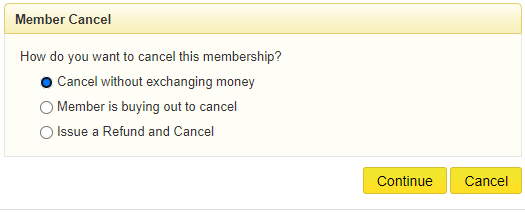
1.Cancel Without Exchanging Money - No financial transaction will be processed
a.Use this option when:
•The member is not purchasing a buyout
•The club is not offering a refund
2.Member Is Buying Out for Cancellation
a.Use this option when the member is required to pay a buyout amount as part of the cancellation:
•The system calculates the amount due using the Buyout Calculator
•The system redirects you to the Point of Sale (POS) screen to process the payment
3.Issue a Refund and Cancel
a.Use this option when the member is entitled to a refund as part of the cancellation:
•The system calculates the refund amount using the Refund Calculator
•The system redirects to the Refund screen to process the refund
Reasons, Notes, and Effective Date
After selecting a financial cancellation option, enter the required cancellation information.
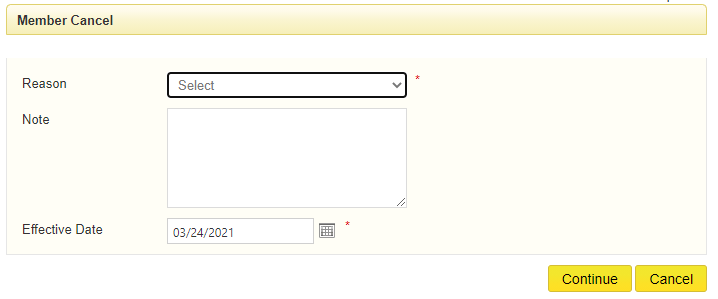
•Reason
○Select a cancellation reason from the drop-down list.
○Cancellation reasons can be used for reporting and member retention analysis.
•Notes
○Enter any additional information related to the cancellation.
○Examples include:
▪Reason for leaving
▪Follow-up details
▪Special circumstances
▪Internal notes
•Effective Date
○Enter the date the membership should be canceled. The member's status will change on the selected effective date.
Note: Members with future-dated cancellations remain active until the effective cancellation date is reached.
Verifying a Future-Dated Cancellation
To verify a future cancellation date:
1.Open the member record
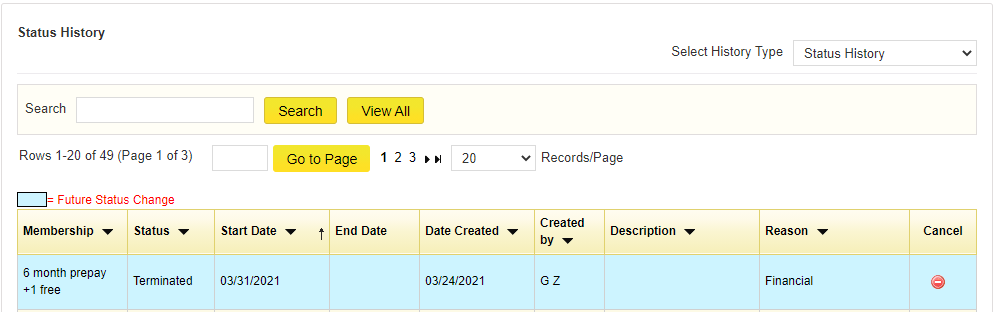
2.Click the status link under Current Status (for example, click the word OK)
3.Review the member status information

If a future cancellation has been scheduled, the cancellation date is highlighted in blue. To cancel the future termination, click the cancel button on the last column.
The cancellation process is now complete.
