F113 – Additional Services, Sessions Services, and Classes
Overview
This article explains how to sell, schedule, and manage Additional Services and Session Services.
Topics Covered
•Additional Services Overview
•Selling an Additional Service
•Session Services Overview
•Selling Sessions and Classes
•Scheduling a Session or Class
•Canceling a Single Session or Class
•Canceling an Additional Service or Session Service
•Scheduling Outside Normal Working Hours
Additional Services
Additional Services are recurring or one-time services billed separately from a member's membership.
Examples include:
•Locker rentals
•Annual facility fees
•Specialty facility access (such as a salon)
•Other recurring or optional services
Additional Services can only be sold to members with an active membership.
A member may purchase multiple Additional Services, and each service can be canceled independently without affecting the member's membership.
Selling an Additional Service
Additional Services are sold through the Add Invoice screen in Point of Sale (POS).
The Add Invoice page appears when:
•Signing up a new member
•Selecting POS from the Relate Bar within a member's record
Note: The Additional Services button is not available when using the green POS control from the main navigation because Additional Services can only be sold to members with active memberships.
To sell an Additional Service
1.Open the member's record
2.Click POS on the Relate Bar 
3.Click Additional Services
4.Select the Additional Service to sell
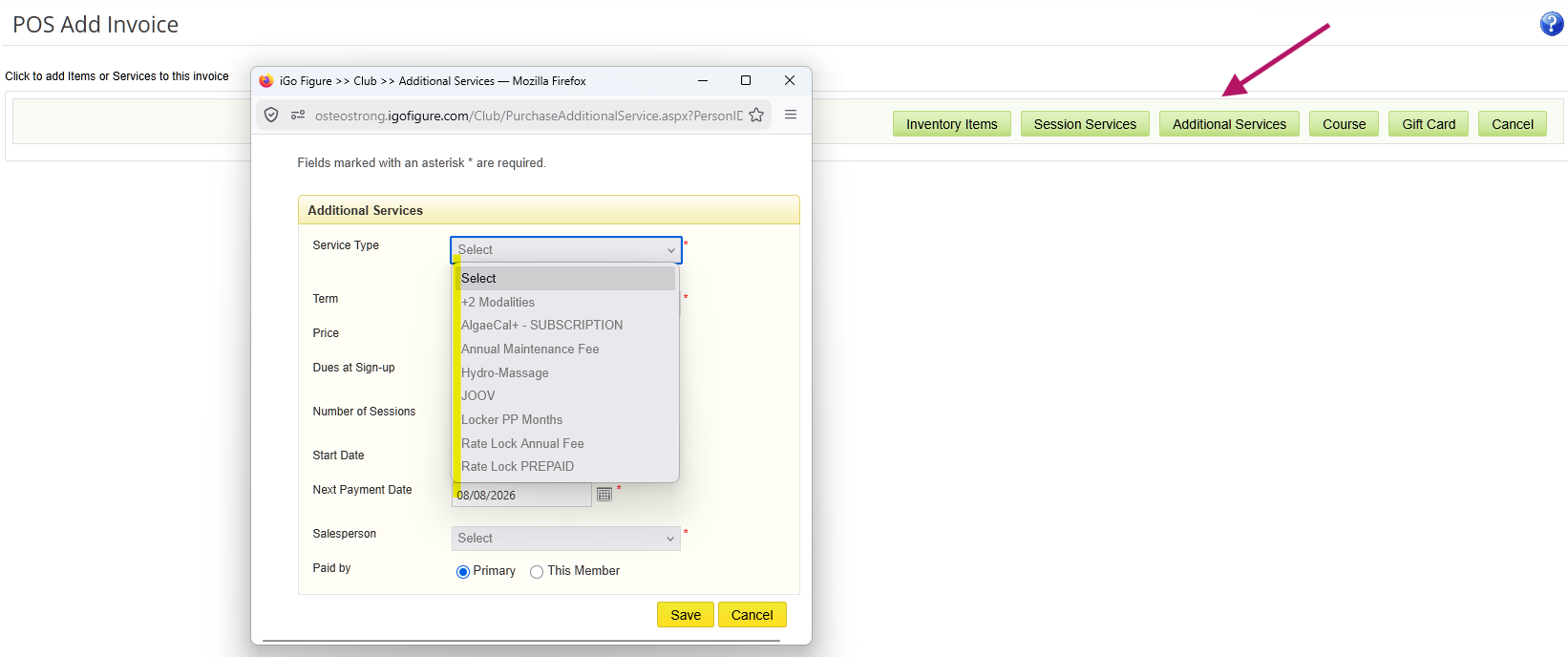
5.Modify any available options as needed and Save
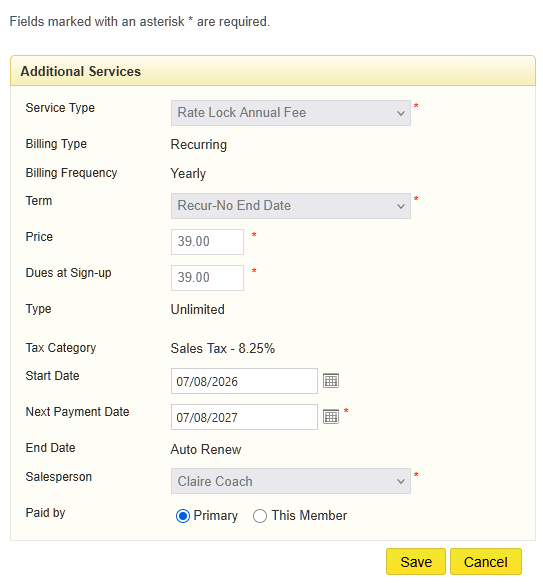
6.Complete the checkout process. Click Checkout > Add Payment Method
7.Select payment method(s) > Save
8.Add Note to receipt if needed (these notes appear under the History tab > Checkout Notes in the member record)
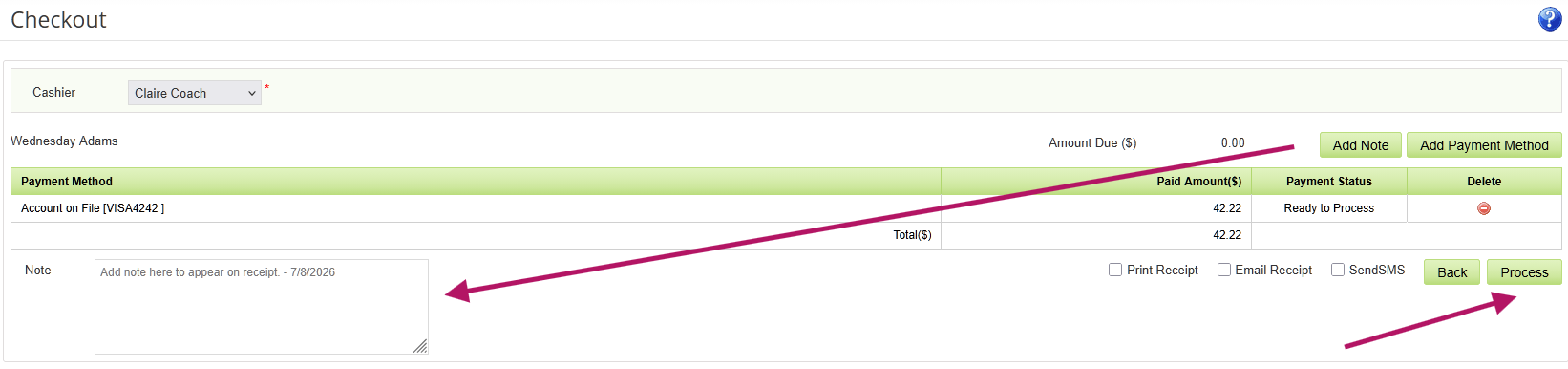
9.Click Process to complete the transaction
Session Services
Session Services allow members to purchase appointments with FitPros or instructors.
Session Services can be sold to members with or without an active membership and to prospects without a membership.
There are two types of Session Services:
One-on-One Sessions
One FitPro is scheduled with one member during a single calendar appointment.
Members schedule these appointments based on FitPro availability.
Classes
A FitPro conducts one session for multiple members during a scheduled class time established by the club.
Selling Sessions/Classes
Session Services are sold through the Add Invoice screen in Point of Sale.
To sell a Session Service
1.Open the member's record
2.Click POS on the Relate Bar
3.On the Add Invoice screen, click Session Services
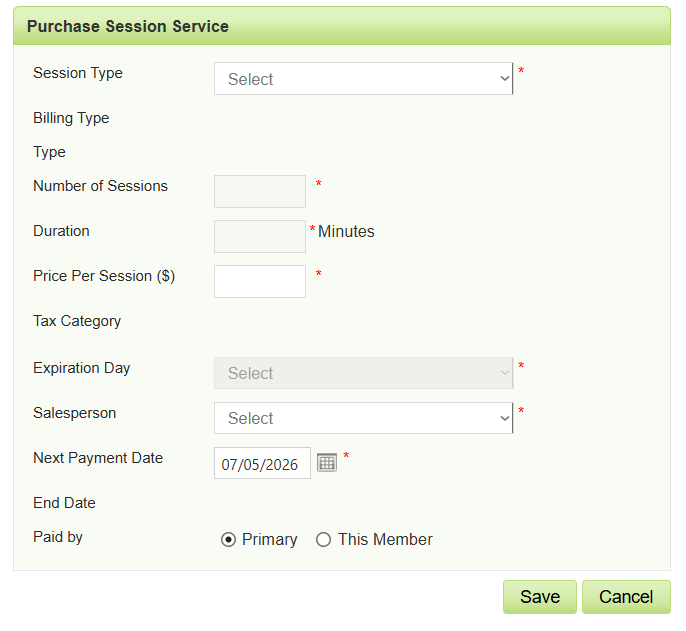
4.Select the Session Service or Class Session
5.Review the service details
6.Complete the checkout process
Note: If certain fields cannot be edited, they are controlled by Ownership Entity (OE) settings. Only users with the appropriate OE permissions can modify those settings.
Scheduling a Session/Class
After a Session Service is purchased, each session must be scheduled before it appears on the calendar.
To schedule a session
1.Open the member's record
2.Select the Scheduling tab
3.Locate the appointment with a Paid Unscheduled status
4.Click Book under the Action column
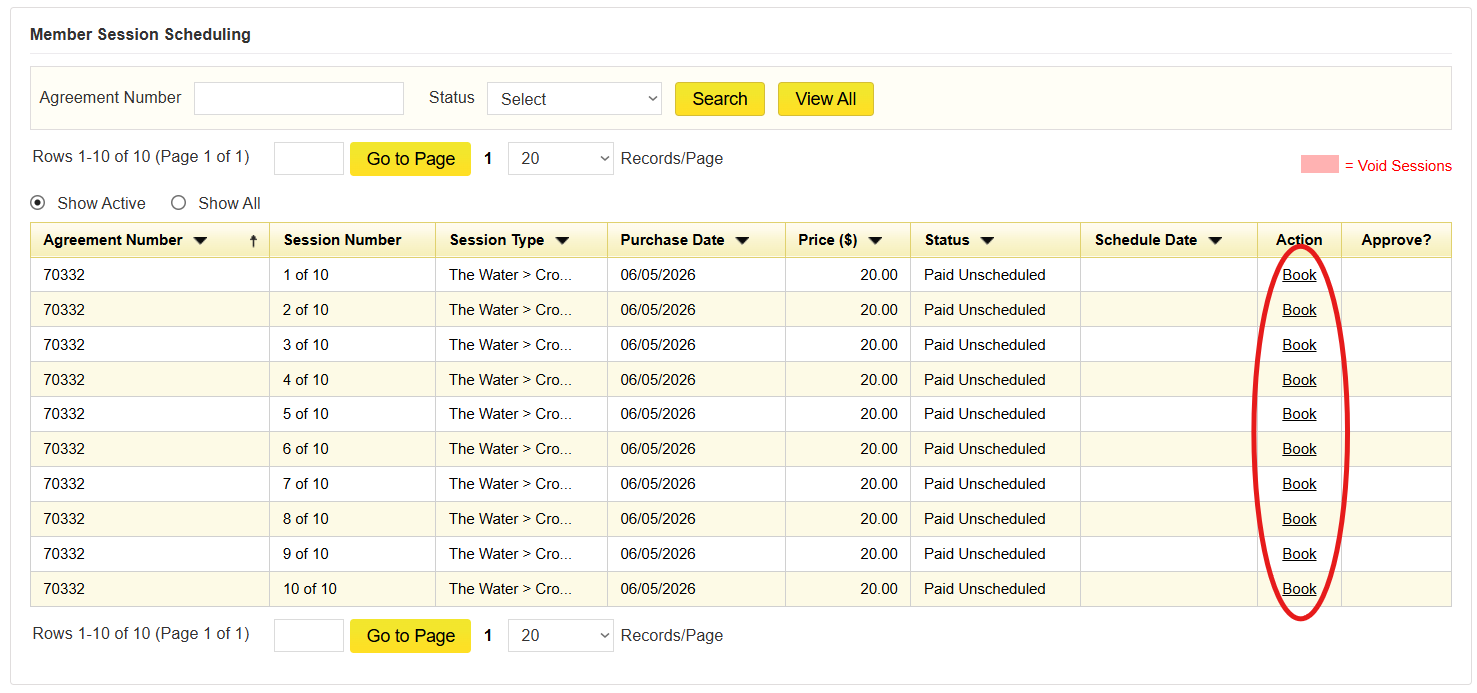
5.On the calendar:
•Double-click the desired date and time for a One-on-One session
•Click the existing class time when scheduling a Class
6.Select the FitPro
7.Choose who should receive appointment notifications
8.If scheduling additional sessions, click Schedule Another Session
9.Click Save
A confirmation message appears after the session has been successfully scheduled.
Once a session is scheduled, the FitPro may APPROVE the session and manually mark it CONSUMED later if needed.
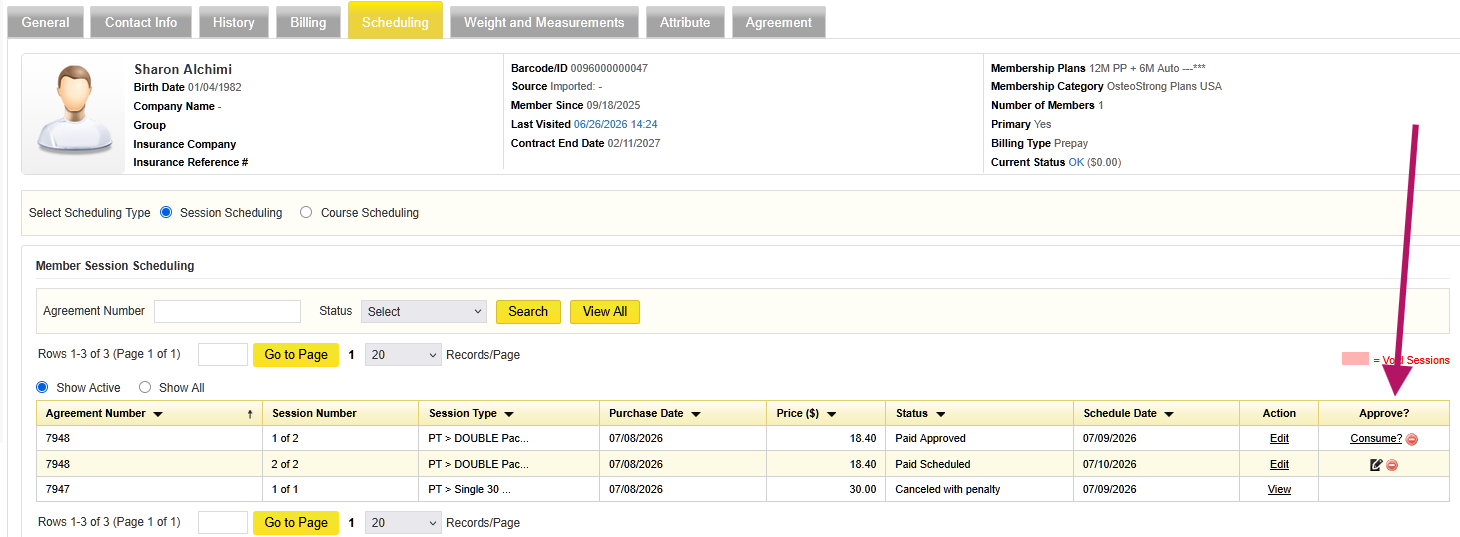
Cancelling a Single Session or Class
1.Open the member's record
2.Select the Scheduling tab
3.Locate the scheduled appointment
4.Click Cancel in the Approved column
5.Choose one of the following options:
•Cancel with Penalty — The member session is deducted from the member’s account
•Cancel without Penalty — The session will be available to be rescheduled
Canceling an Additional Service or Session Service
Additional Services and Session Services can be canceled independently without canceling the membership.
To cancel a service
1.Open the member's record
2.On the General tab, locate the service
3.Click Cancel on the service line
4.Confirm the cancellation
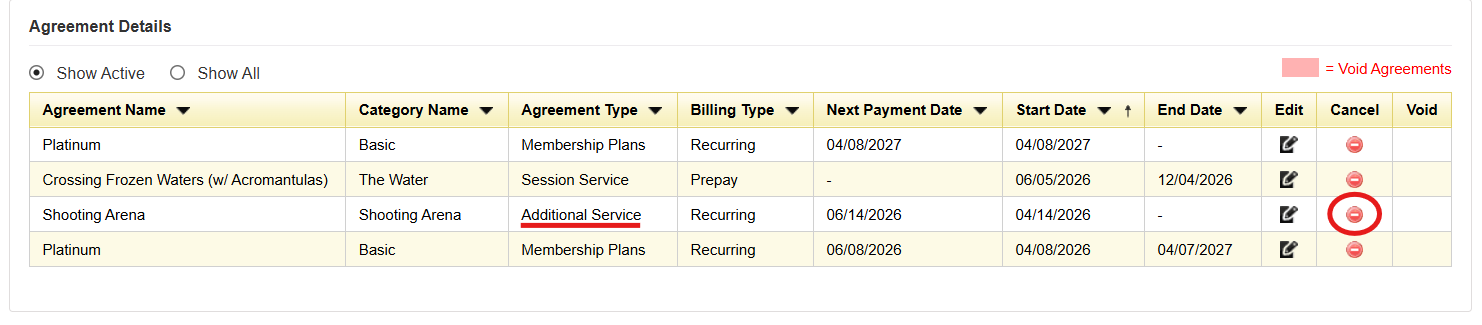
Scheduling Outside of Normal Working Hours
If scheduling a session outside of a FitPro’s normal working hours, iGo360 displays a warning message requesting confirmation.
•Click OK to schedule the appointment.
•Click Cancel to return and choose another available time.
Notes
•Additional Services can only be sold to members with active memberships
•Members may have multiple Additional Services at the same time
•Canceling an Additional Service or Session Service does not cancel the membership
•Session Services must be scheduled individually before they appear on the calendar
•Scheduling outside a FitPro’s normal availability requires confirmation
