FAQ #9 – PAY NOW Link to Pay Online
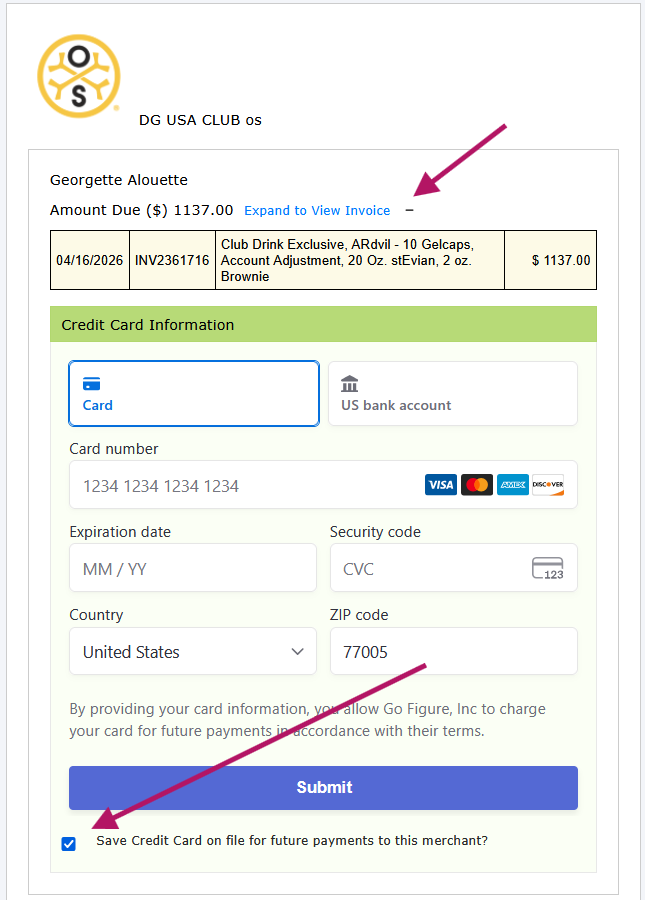
When members have a balance due, a Statement email can be triggered. This Statement includes a Pay Now link, that allows the member to pay online and save the card information for future use.
When signing up a new member who does not want to give credit card information:
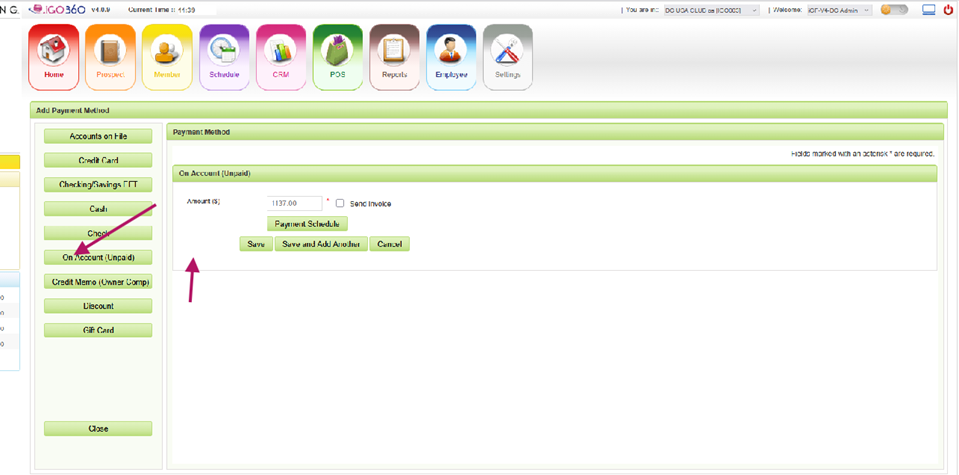
At the checkout screen > Add Payment Method > select ON ACCOUNT (Unpaid) as the payment method > Save > click through to Process.
This puts the balance due on the member’s record, available to pay online via the link from the email notification to be sent.
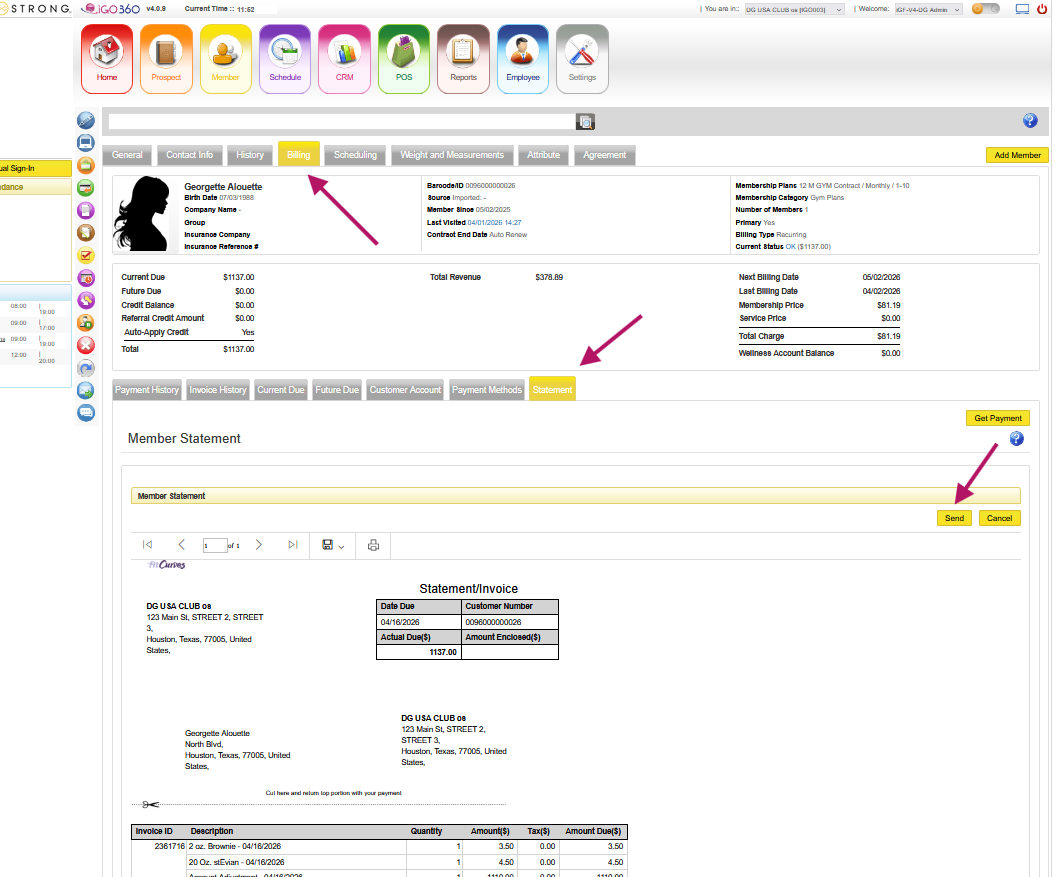
Provided member has a balance due, an email address, and is subscribed to emails, send the Statement email:
From Member Record > Billing tab > click on the Statement tab > after it populates click to Send.
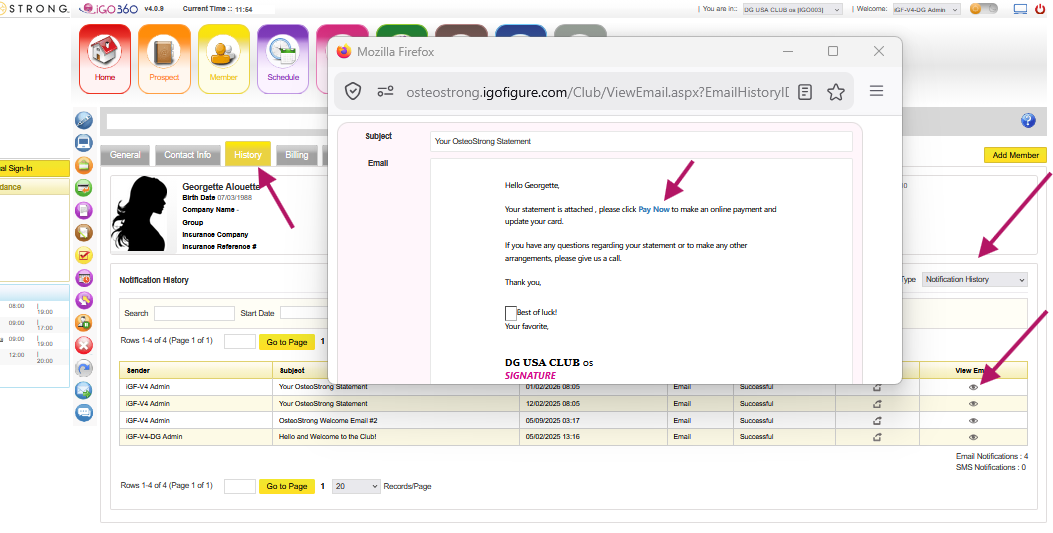
To view the content of sent emails: History Tab > select Notification History > click the Eye icon.
The page the customers see, when following the link to pay online and save their card info.