Managing Attendance Based Insurance Programs
FAQ #7 - Managing Attendance Based Insurance Paid Programs
Create An Attribute
Create an attribute called Silver Sneakers or any other name. One will be needed for each program to be tracked/
Log in to Club Tier > Settings > Attribute
1.Click Add Attribute
2.Enter the Attribute Name, select to be alerted on scan in (If selected, this alert will flag the member’s name on Today’s Attendance Panel each time they scan in)
3.Click Save
Sign Up Members
Log in to Club Tier > Sign up. Choose the specific plan for the program to be tracked.
Assigning the New Attribute
Assign the attribute to each member in the program.
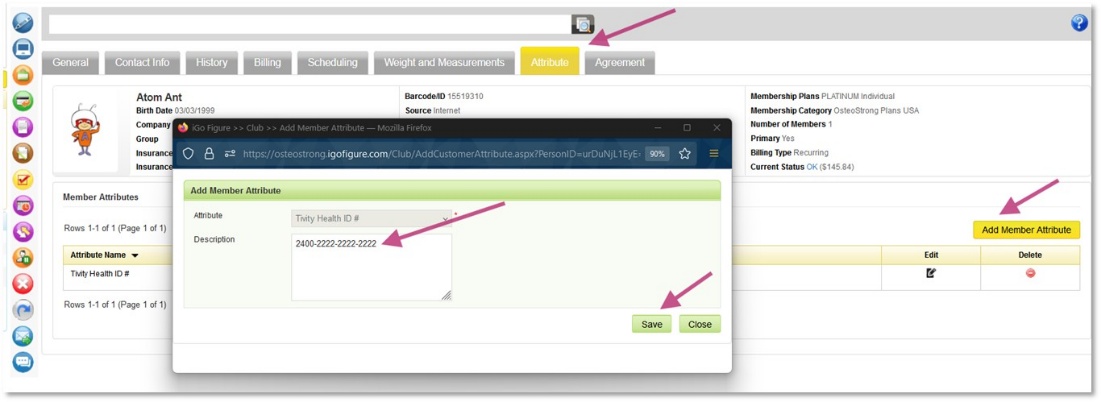
1.In the member’s record, click the Attribute tab
2.Click Add Member Attribute, select the Attribute you created from the dropdown menu
3.Enter the Insurance ID number in the description
4.Click Save
Viewing & Exporting the Attendance Report
The Attendance Details report can be used to retrieve the attendance information.
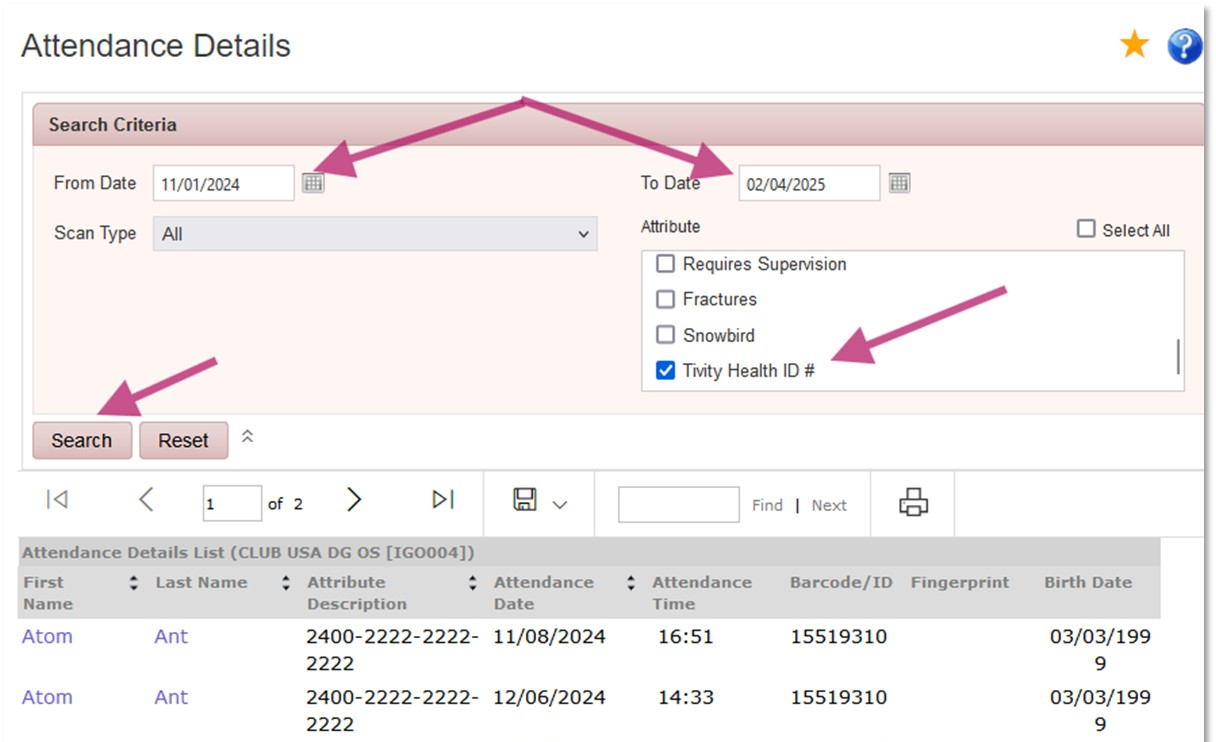
Log in to Club Tier > Reports > Attendance Reports > Attendance Details
1.Set Date Range
2.Select the Attribute from the filter list
3.Click Search
The Report can be exported to Excel, PDF or Word, it contains the following columns:
•First Name
•Last Name
•Attribute Description this is where the program ID will show
•Attendance Date
•Attendance Time
•Barcode/ID this is the member ID number (keytag, card or fob) from your club
•Fingerprint this column will likely be blank; if exported to Excel, it can be deleted or ignored
•Birth Date
Record Payments
To record the payment once you receive the check from the insurance company follow these steps:
Create an Inventory Category
Log in to OE Tier > Item > Inventory Category
1.Add Inventory Category, call it Insurance Based Revenue (for example)
2.Click Save
Create an Inventory Item
Log in to OE Tier > Item > Inventory Item
1.Click Add Inventory Item, add item called Silver Sneakers Revenue or the name of your program
2.Click Save
POS Transaction
When a check from the insurance company is received, perform a Non-Member Sale in the amount of the check by selling the Silver Sneakers Revenue item created above.
Log in to Club Tier > POS > Inventory Items
1.Select the item Silver Sneakers Revenue
2.Enter the amount of the check (payment) in Price
3.Click Sell
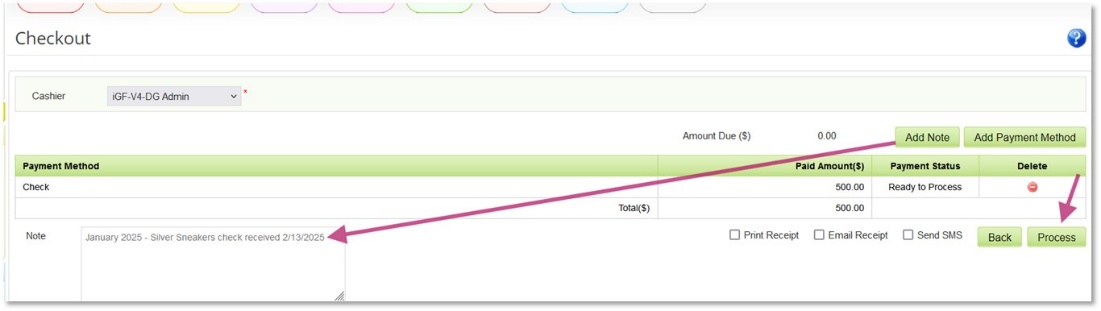
4.Checkout
5.Add Payment Method > select Check > enter Check Number
6.Click Save
7.Add Note if needed
8.Click Process
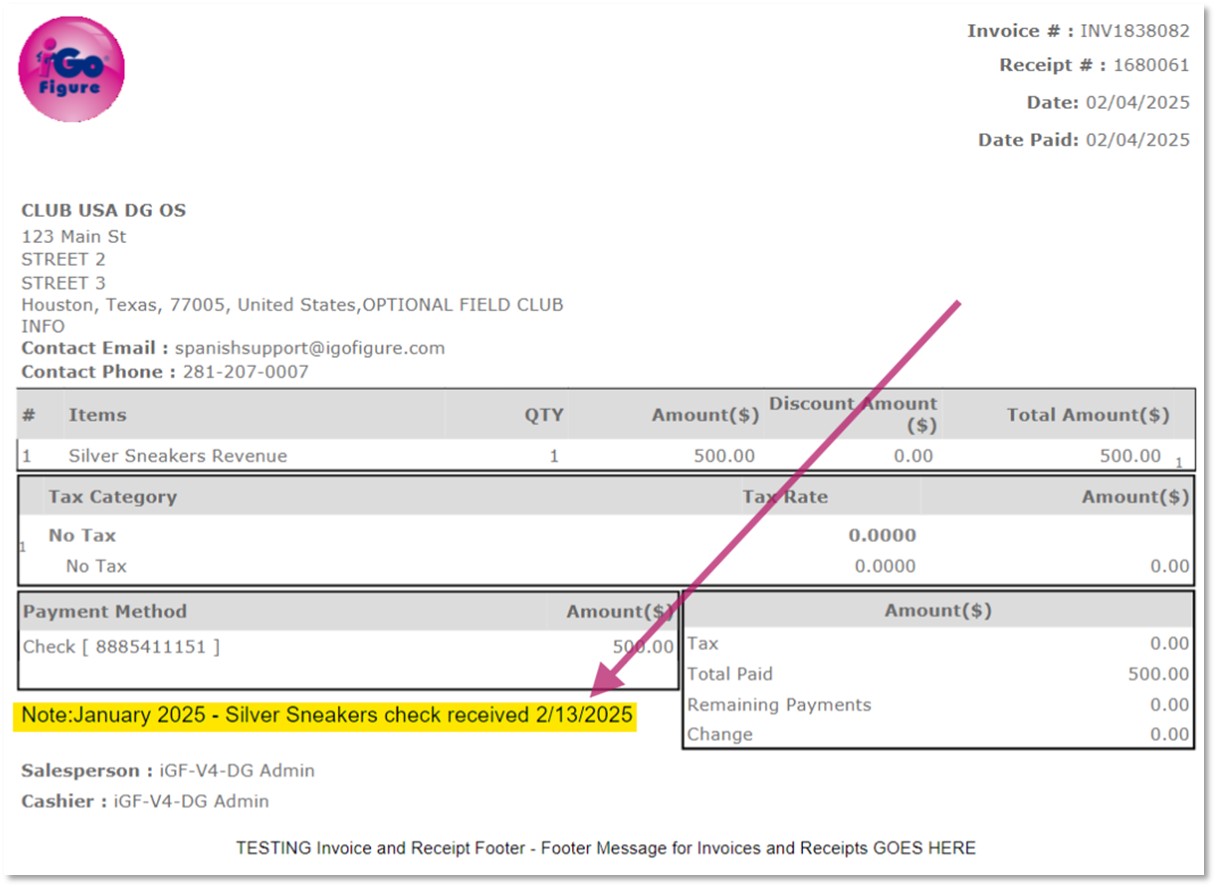
To view the invoice, hover over POS Menu > select Non-Member Invoice History > click on the Invoice Number to view it.
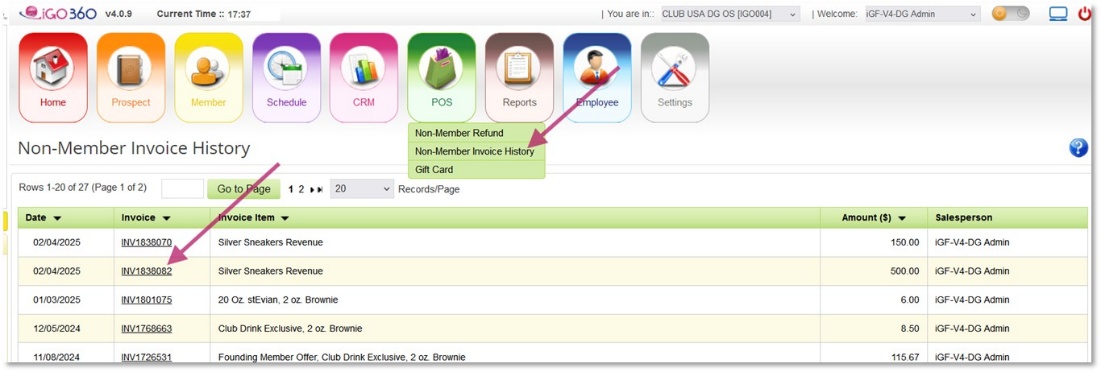
The note, if added, appears on the invoice (not highlighted)