Mass Messages
FAQ #6 – Mass Messages
Once the mass email feature has been enabled, follow these steps to send a mass message.
Sending A Mass Message
1.From the Club Tier > Click the CRM tab > Select Mass Messaging > Select Person Type
2.Select Membership Plans - Select a Membership to filter or All to include all plans
3.Select Status - Select a Status to filter or All to include all statuses
4.Select Attribute - Select one to filter > Click Search
5.Select Email or SMS (if enabled) - Add Title & Subject (the subject is visible to the member; the title is not)
6.Create the Message in the body
7.Click the white message box to enlarge and edit, click the gray border to shrink and continue
8.Select All recipients or check the box next to the names to select specific members
9.Click Send in the lower right corner
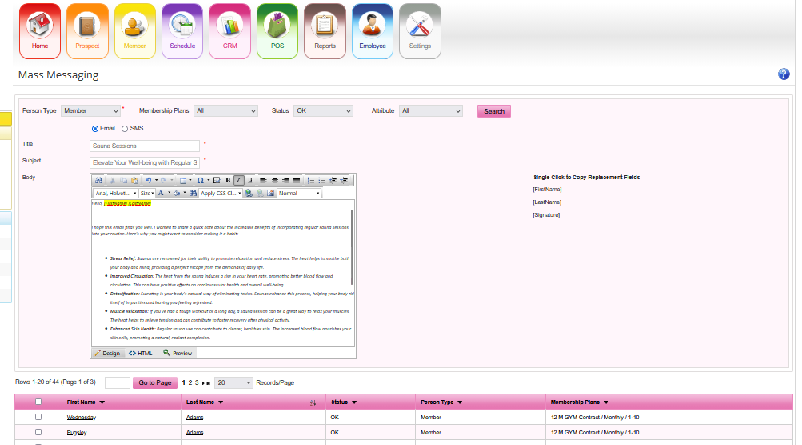

Example Letter
Title: Sauna Sessions
Subject: Elevate Your Well-being with Regular Sauna Sessions
Body:
Hello, [FirstName] [LastName]
I hope this email finds you well. Lorem ipsum dolor sit amet, consectetur adipiscing elit, sed do eiusmod tempor incididunt ut labore et dolore magna aliqua. Ut enim ad minim veniam, quis laboris nisi ut aliquip ex ea commodo consequat.
Best regards,
[Signature]
Notification History
The message status can be found under CRM > Notification History
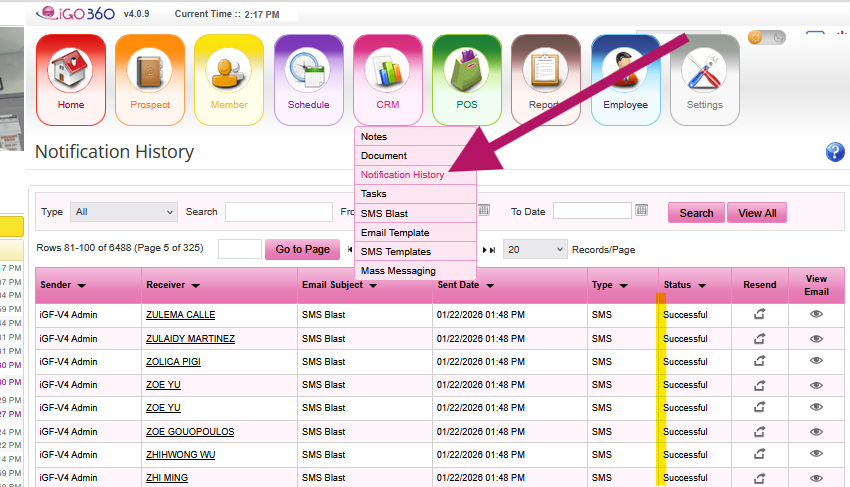
Individual Message Status
Each member record will have an entry in their notification history for messages sent as a mass message. They can be found at Member Record > History tab > Notification History
