Inventory
FAQ #3 – Inventory
Inventory in OE Tier
Adding Inventory Categories
1.Login to the OE Tier > Item > Inventory Category
2.Click Add Inventory Category, e.g. Add a category called Calton Nutrition
3.Enter the required information, select color for classification
4.Save
Repeat the process until all necessary Inventory Categories have been added.
Adding Inventory Items at OE Tier
Add all inventory items in the OE Tier. Manage the quantities and per location prices in the Club Tier.
Items added at OE Tier will appear in all locations.
1.Log in to OE TIER > Item > Inventory Item
2.Click Add Inventory Item
3.Enter the required information. **Floor Price: is the lowest possible price allowed without a discount given at the time of sale
4.Save
Repeat the process until all necessary Inventory Items have been added.
Managing Email Notification
The low stock notification is sent to club when inventory quantity is tracked. Verify the Low Stock email notification is active in OE > Settings > Email Notifications > Inventory Email > Time to Reorder
Inventory in Club Tier
Adding Inventory Items at Club Tier
We suggest adding all inventory items in the OE Tier and managing quantities and per location prices in the Club Tier. Items added at club level appear only on the location added and must be managed at club tier location.
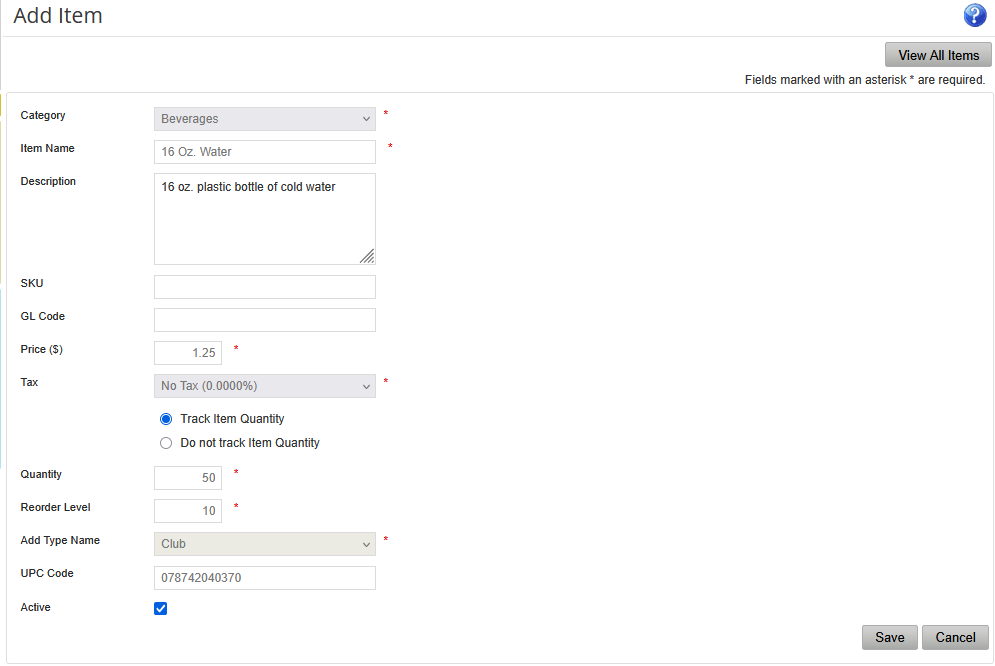
1.Go to Club, then menu option Settings > Inventory Item > Add Item
2.Enter the required information. **Floor Price: is the lowest possible price allowed without a discount given at the time of sale
3.Save
Tracking Stock Quantities
Once you add all the items in the OE Tier you can track quantities at the club level to trigger the reorder reminder email.
1.Go to your Club Tier > Settings > Inventory Item
2.Edit the item to track
3.Select Track Item Quantity
4.Enter Quantity
5.Enter Reorder Level
6.Optionally, add UPC Code
7.Save