Employees & Users
FAQ #1 - Employees & Users
Overview
Employees and Users are created and managed by Owners or Managers with access to the Ownership Entity (OE) tier.
Security Profiles/Roles
Before creating Employees or Users, Security Profiles are required to be created for both the Ownership Entity (OE) and Club tiers.
Creating a Security Profile
1.Log in to the OE tier
Note: If the OE option is not present, the account may not have access to the Ownership Entity tier. Contact the Club owner or manager for assistance.
2.Navigate to: Masters > Security Profile > Add Profile
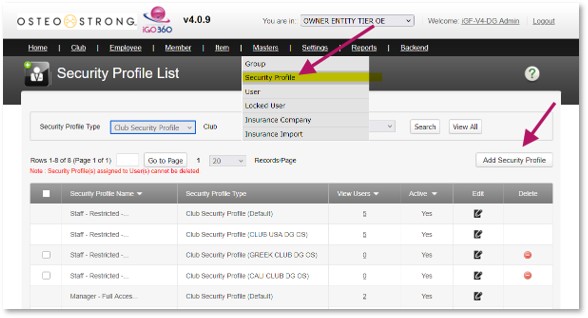
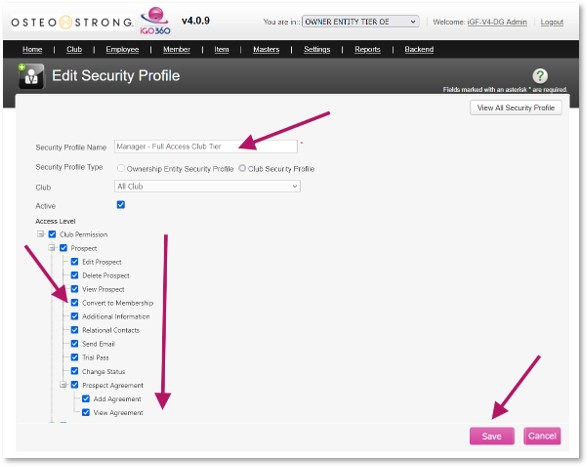
3.Enter a Profile Name
4.Select a Profile Type:
5.Ownership Entity Security Profile – Provides access to the OE tier
6.Club Security Profile – Provides access to Club-tier features only
7.Select the permissions to grant by checking the appropriate options
8.Click Save
Repeat these steps until all required Security Profiles have been created.
Employees
Adding New Employees
1.Log in to the OE tier
2.Navigate to: Employees > Add Employee
3.Enter all required information marked with a red asterisk (*)
4.Click Next
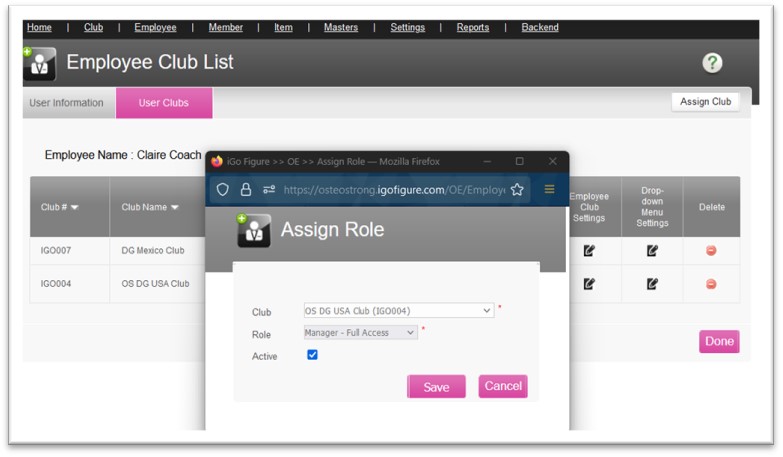
1.Click Assign Club
2.Select the appropriate Club and Security Profile (Role)
3.Select the Active checkbox
4.Click Save
5.If applicable, review and configure:
○Commissions
○Bonuses
○Employee Club Settings
○Drop-Down Settings
6.To assign the employee to additional locations, repeat Steps 5–8 for each location
7.Click Done
Repeat these steps until all employees have been added.
Adding Employee Access to Other Locations
Employees can be assigned to one or more locations within the same Ownership Entity.
If an employee already exists and needs access to an additional location:
1.Log in to the OE tier
2.Navigate to: Employees > View All
3.Edit the employee record
4.Select the User Clubs tab
5.Click Assign Location
6.Select the location
7.Select the appropriate Security Profile (Role)
8.Click Save
9.Click Done
Changing Existing Employee’s Security Profile
1.Log in to the OE tier
2.Navigate to: Employees > View All
3.Edit the employee record
4.Select the User Clubs tab
5.Click the current Role
6.Select the new Security Profile
7.Click Done
8.Click Save
Removing Access from Employees
If the TIME CLOCK feature is used, DO NOT DELETE THE EMPLOYEE.
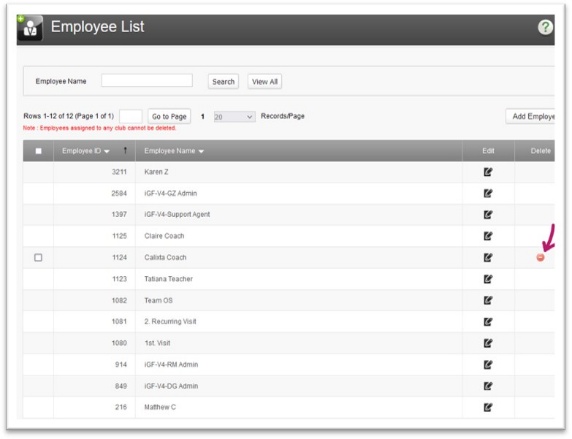
1.Login to OE > Employees > View All > Click the Edit button for the employee whose access to remove
2.Go to User Club tab > click the Delete button  to remove the access from the club listed
3.Once all clubs are deleted click Done
4.If the TIME CLOCK feature is used, DO NOT DELETE THE EMPLOYEE, leave the name on the list. The employee may be deleted if time sheets exist. In either case, access has been removed
Ownership Entity (OE) Users
Adding New OE Users
Before creating an OE User, verify that an OE Security Profile has been created.
See Security Profiles (Roles) above.
Creating a new OE User
1.Log in to the OE tier
2.Navigate to: Masters > Users > Add User
3.If the user already exists in another location:
a.Begin typing the user's login email address
b.When the email appears, press Tab to select it
c.The remaining fields will populate automatically
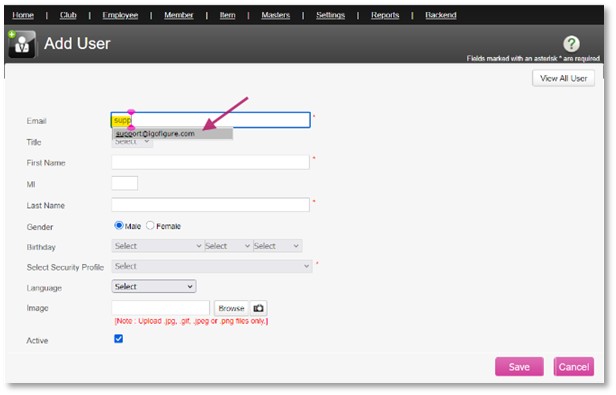
4.Enter all required information marked with a red asterisk (*)
5.Select the appropriate Security Profile
6.Click Save
Removing an OE Users
1.Log in to the OE tier
2.Navigate to: Masters > Users
3.Click the Delete button to remove the user
