F126 - Club Settings

Overview

The Club Settings menu allows configuration of location-specific preferences, manage services, inventory, customize member-facing features, and maintain operational settings for the club.
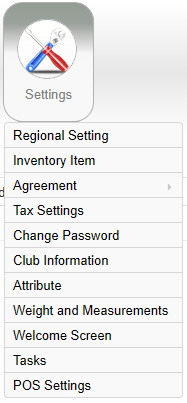
The image is a screenshot of a settings menu in a software application, featuring various options such as Regional Setting, Inventory Item, Agreement, Tax Settings, and others.

AI-generated content may be incorrect.

Regional Setting

View and configure regional preferences for the club.

•Set the club's time zone
•Select the application language

Inventory Item

Manage inventory items available at the club.

•View a list of inventory items and pricing
•Create new inventory items
•Edit item details and pricing
•Track inventory quantities
•Delete inventory items (with appropriate security permissions)

Note: For multi-location organizations, inventory items created at the club level are only available and managed within the club they were created.
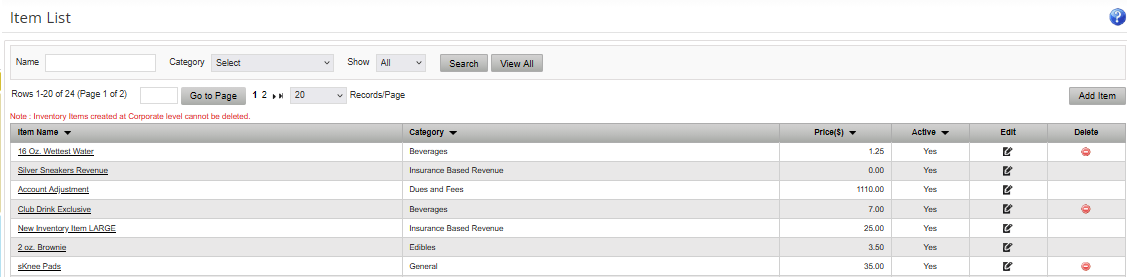
The image displays an inventory list with columns for item name, category, price, and status, including various products and their details.

AI-generated content may be incorrect.

Agreement

The Agreement menu includes the controls for Membership Plans, Additional Services, and Session Services.
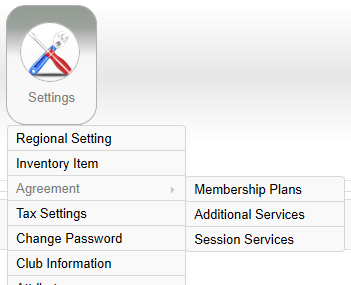
The image is a screenshot of a software or app's settings menu, featuring various options such as regional settings, inventory, agreements, membership plans, tax settings, additional services, password change, and session services.

AI-generated content may be incorrect.

Membership Plans

Manage membership plans available at the club.

•View a list of membership plans and pricing
•Edit membership plan price
•Update tax categories
•Activate or deactivate plans (with appropriate security permissions)

The image shows a webpage displaying various membership plans, including options for gym contracts, punch cards, and osteopathy plans, each with different pricing and recurring payment options.

AI-generated content may be incorrect.

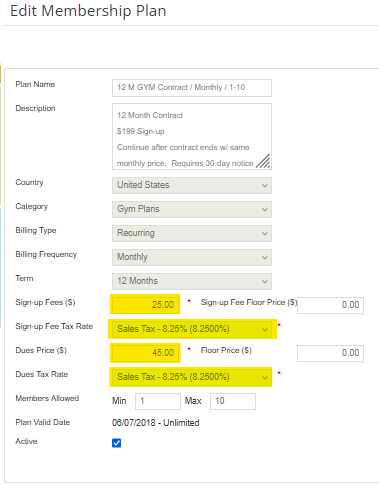
The image shows a gym membership plan with a 12-month contract priced at $199, including a sign-up fee of $25, with a monthly dues of $45, all subject to an 8.25% sales tax, and allows for 1 to 10 members.

AI-generated content may be incorrect.

Additional Services

Manage additional services available for sale.

•View a list of additional services and pricing
•Edit additional service price
•Update tax categories (with appropriate security permissions)
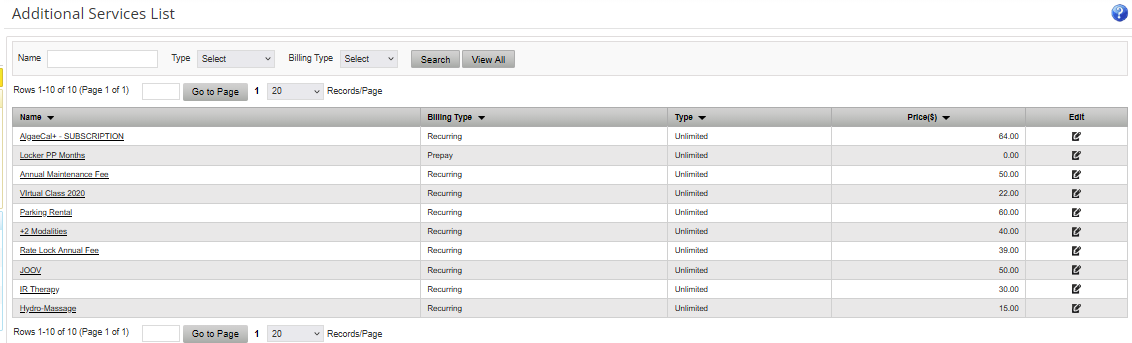
The image displays a table listing various additional services, including their names, types, pricing, and billing options.

AI-generated content may be incorrect.

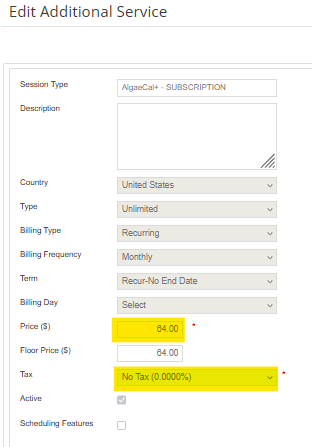
The image displays a subscription form for an Additional Service on AlgaeCal+, with fields for session type, country, billing details, and pricing information.

AI-generated content may be incorrect.

Session Services

View table of Session Services with their price. Create, edit price, tax category, deactivate, or delete session services (for session services created at this level) with security permissions.
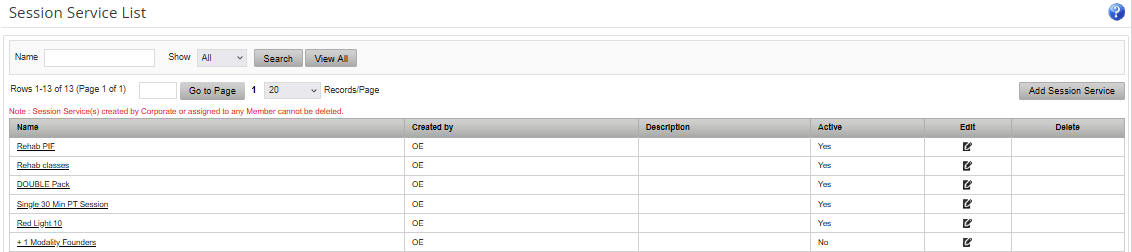
The image displays a table or list interface for a session service management system, with columns for Name, Created by, Description, Active status, Edit, Delete, and additional service options, such as Rehab PIE, Double Pack, and Red Light 10.

AI-generated content may be incorrect.

Tax Settings

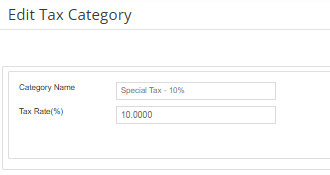
Manage tax categories and tax rates.

•View existing tax categories
•Update tax rates as needed
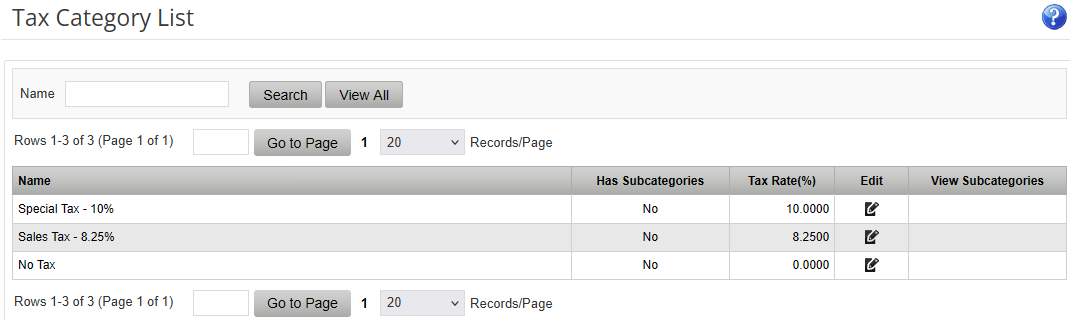
The image displays a tax category list with various tax types and their respective rates, including special tax and sales tax, with options to view subcategories and navigate through paginated records.

AI-generated content may be incorrect.

The image displays a form for editing a tax category with a special tax rate of 10%.

AI-generated content may be incorrect.

Change Password

Update the password for the currently logged in user.
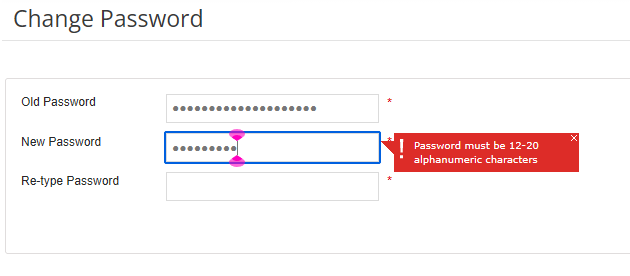
The image displays a user interface for changing a password, showing an old password field, a new password field with a character limit, and a field to re-type the new password.

AI-generated content may be incorrect.

Club Information

Manage club profile information and default settings.

•Update the club’s name, address, phone number, email address, website, and logo
•Configure NSF (Non-Sufficient Funds) fees for failed bank transactions
•Enter a club description displayed for online scheduling
•Create and maintain an email signature for outgoing notifications

Attribute

Manage member attributes used for categorization and reporting.

•View existing attributes
•Create new attributes
•Edit attribute details
•Delete attributes
•View members assigned to each attribute
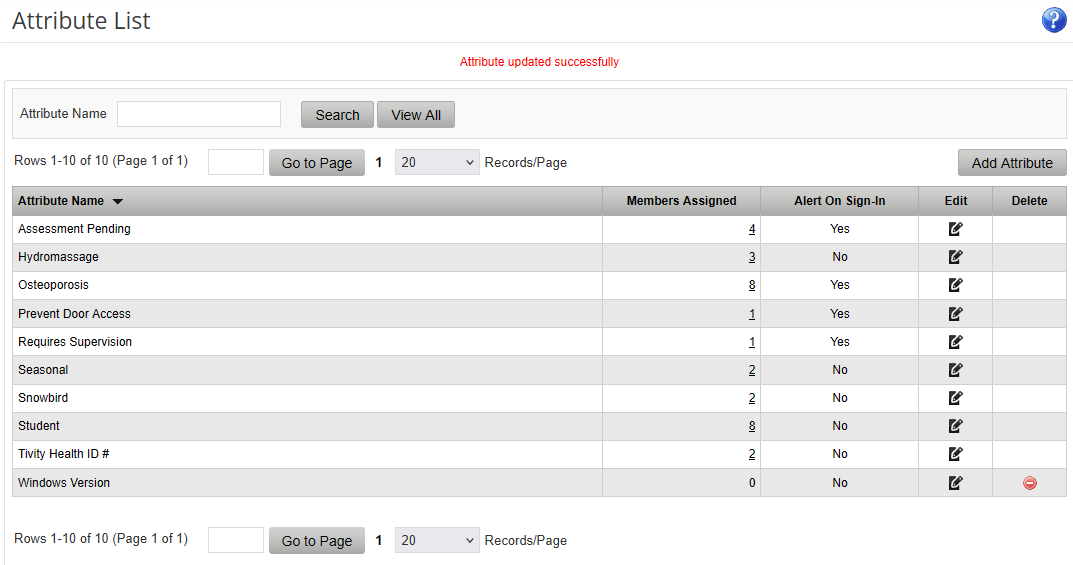
The image displays a user interface with an attribute list, showing various attributes such as 'Search', 'View All', 'Members Assigned', 'Alert On Sign-In', and others, with checkboxes indicating their status.

AI-generated content may be incorrect.

Add Attribute

Create a new attribute and define its settings.
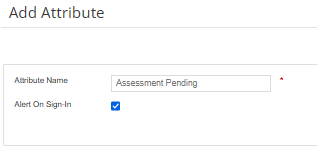
The image shows a user interface with a form to input an attribute name and statuses for assessment pending and alert on sign-in.

AI-generated content may be incorrect.

Weight and Measurements

Configure default units used by the Weight and Measurements feature.

•Select preferred weight units
•Select preferred measurement units
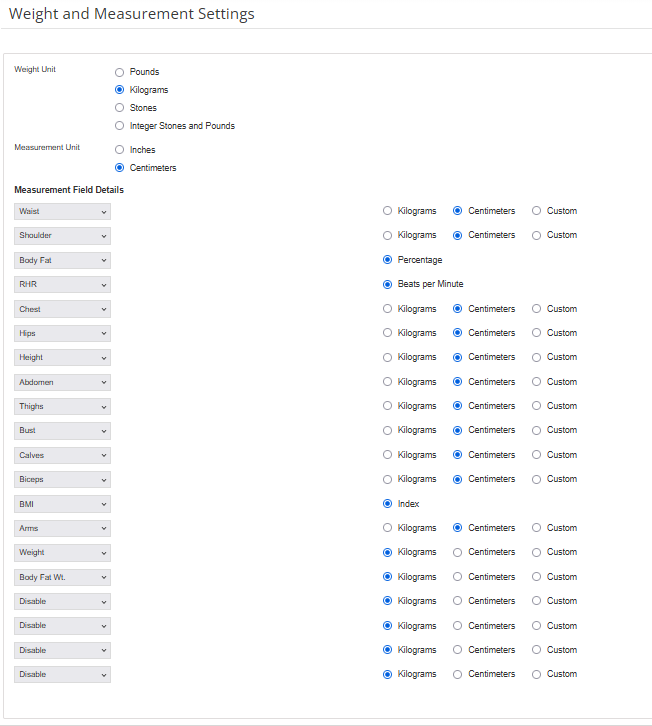
The image is a user interface displaying various weight and measurement fields, including units such as pounds, kilograms, inches, and centimeters, with customizable options for different body parts.

AI-generated content may be incorrect.

Welcome Screen

Configure the member-facing Welcome Screen displayed on a secondary monitor during check-in.

•Display club announcements and notices
•Show advertisements and promotions
•Display member photos
•Display personalized member messages
•Show birthday greetings
•Display other membership-related information

The image displays a web page interface for managing advertisements, featuring sections for listing, description, and image upload, with a transparent clover logo.

AI-generated content may be incorrect.

Welcome Screen Settings

Configure display preferences and behavior for the Welcome Screen.
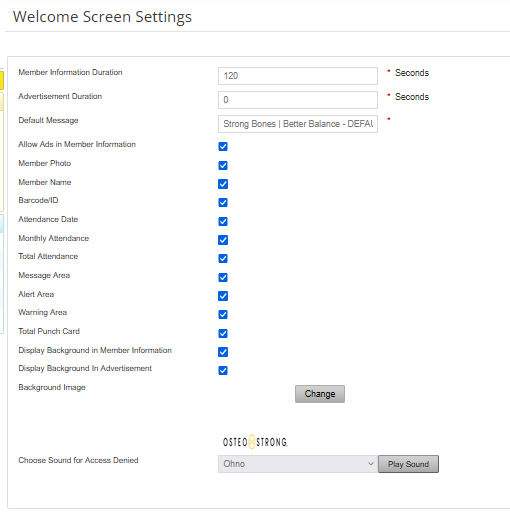
The image shows a screen layout with options to configure welcome screen settings, including member information, advertisement duration, and various display and sound settings.

AI-generated content may be incorrect.

Add Advertisement

Create advertisements for display on the Welcome Screen.

•Upload advertisement images
•Configure display start and end dates
•Manage active advertisements
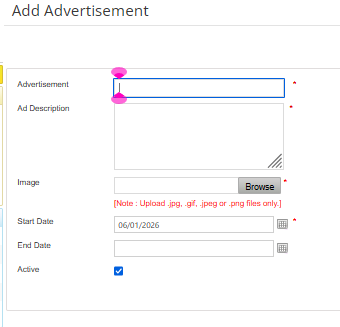
The image shows a screenshot with an advertisement section, including fields for adding a description, image, and specifying file types, along with start and end dates, and a checkbox for active status.

AI-generated content may be incorrect.

Tasks

Manage calendar tasks available for scheduling.

•View existing tasks
•Create new tasks
•Edit task details
•Delete tasks

Note: For multi-location organizations, tasks created at the club level are only available and managed within the club they were created in.
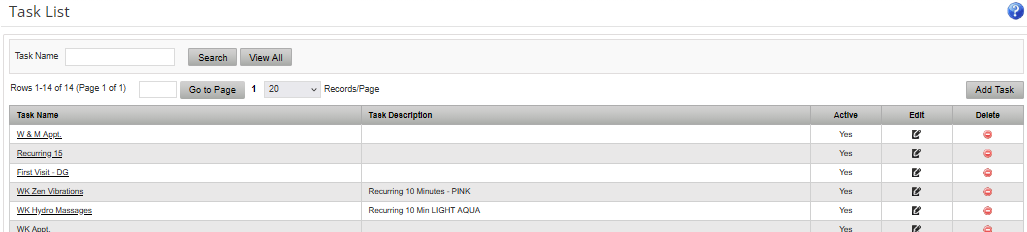
The image shows a task list interface with various fields for task names, descriptions, status, and recurring options.

AI-generated content may be incorrect.

Add Task

Create a new calendar task and define scheduling details.
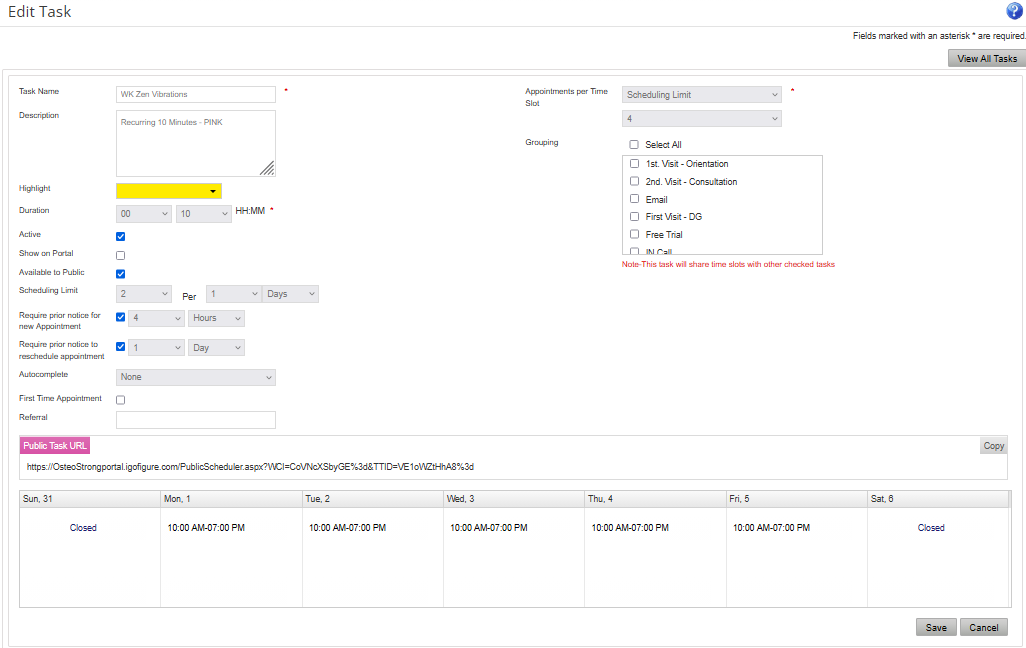
WK Zen Vibrations

AI-generated content may be incorrect.

POS Settings

Configure Point of Sale (POS) preferences.

•Configure cash drawer batch settings
•Select the credit card reader to use when multiple readers are available
•Manage POS operational preferences
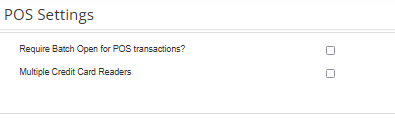
The image shows a POS (Point of Sale) settings page with a toggle option for enabling batch open for POS transactions and a selection for multiple credit card readers.

AI-generated content may be incorrect.