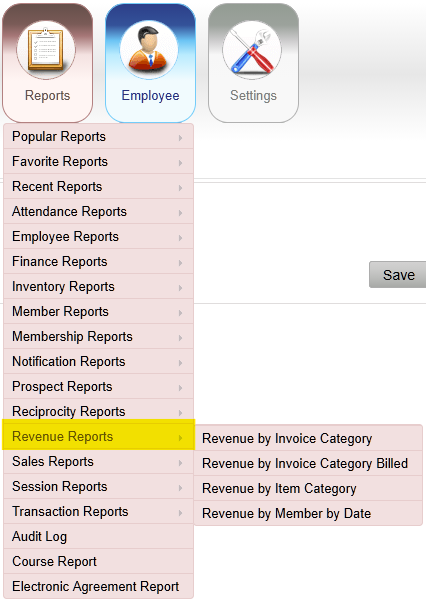
Reports > Revenue Reports > Revenue by Invoice Category
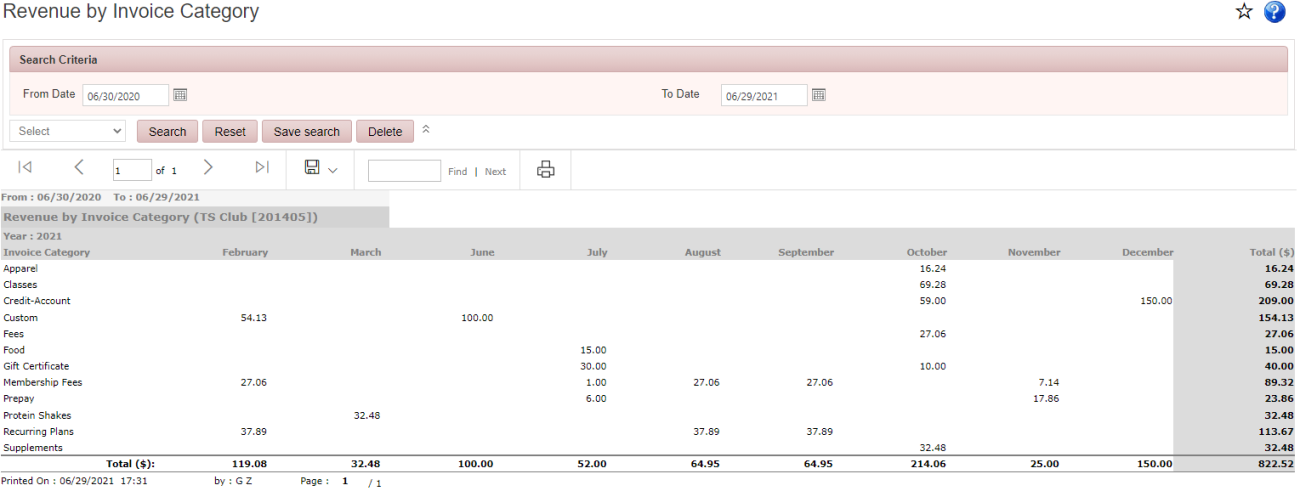
Displays revenue grouped by invoice category for the selected date range, such as Membership Fees, Member Services, and other invoice categories. Monthly totals are displayed at the bottom of the report.
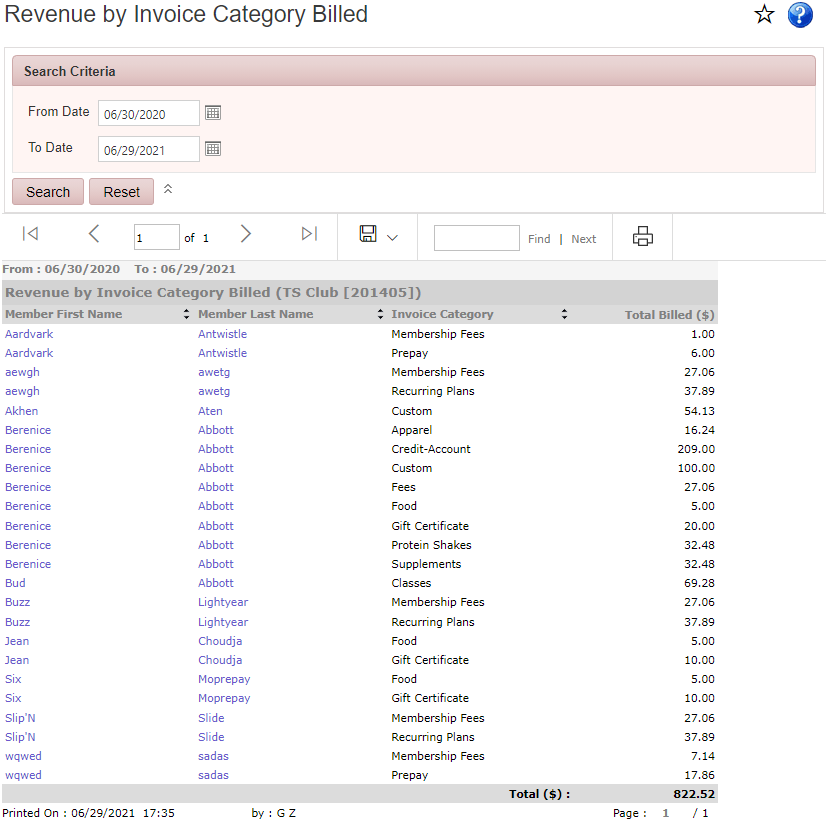
Reports > Revenue Reports > Revenue by Invoice Category Billed
Displays members billed during the selected date range, along with the invoice categories, and billed amounts.
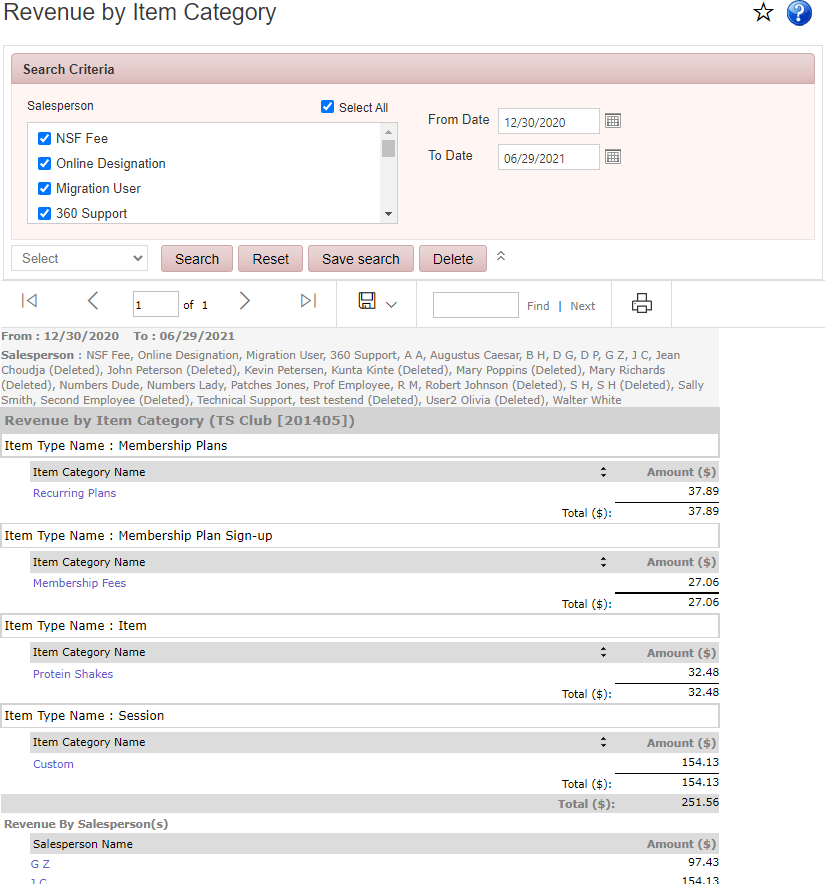
Reports > Revenue Reports > Revenue by Item Category
Displays product revenue for the selected date range, grouped by inventory item category.
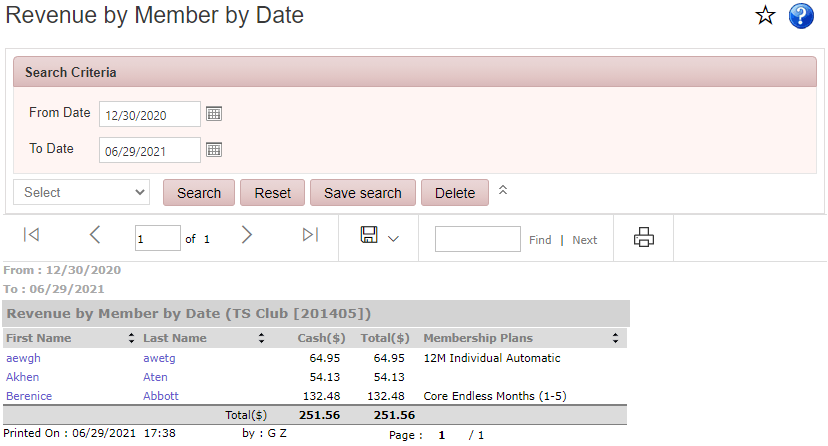
Reports > Revenue Reports > Revenue by Member by Date
Displays revenue generated by each member during the selected date range, including payment methods, and transaction amounts.
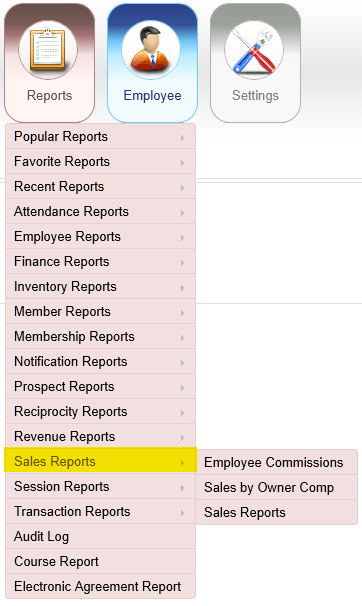
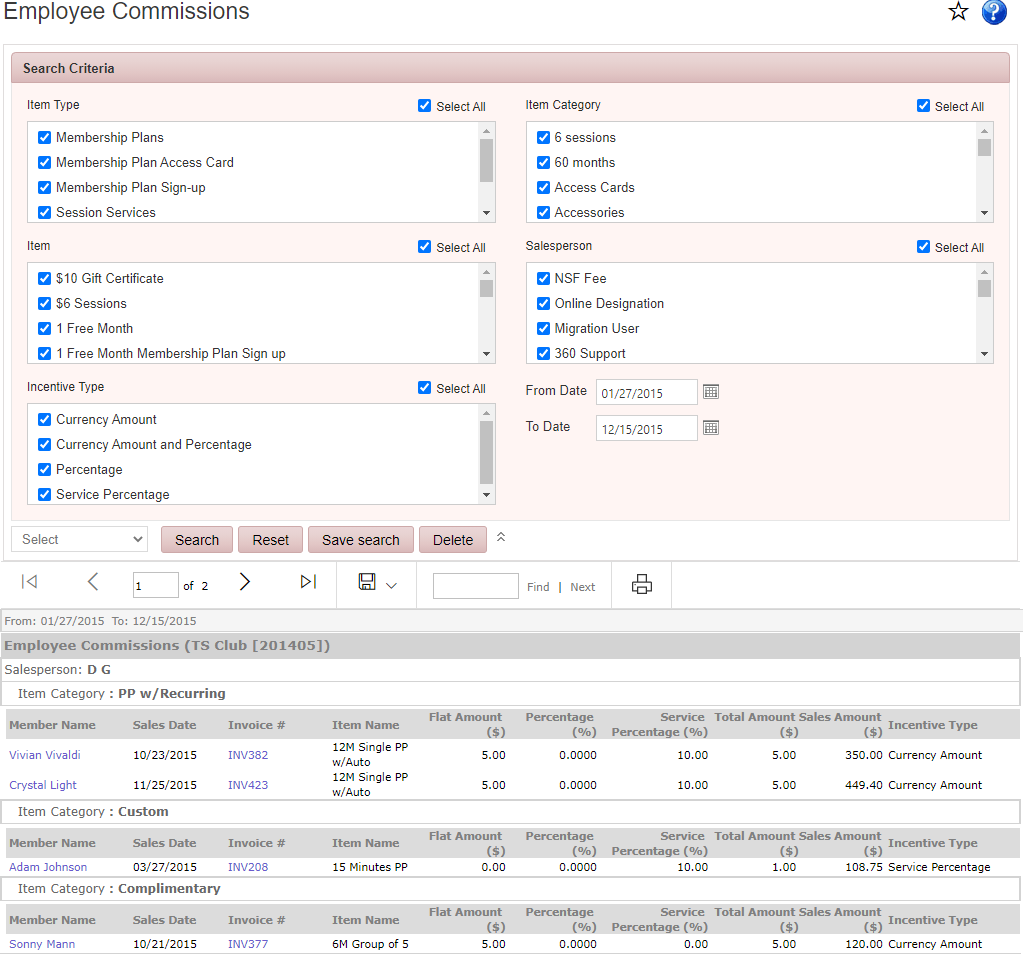
Reports > Sales Reports > Employee Commissions
Displays employee commissions for the selected date range, including items sold, customers served, and total commission earned.
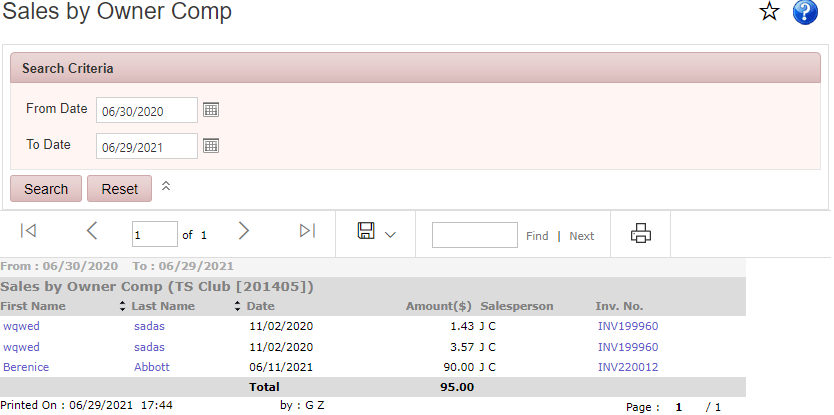
Reports > Sales Reports > Sales by Owner Comp
Displays transactions that were discounted or provided at no charge through an owner comp during the selected date range.
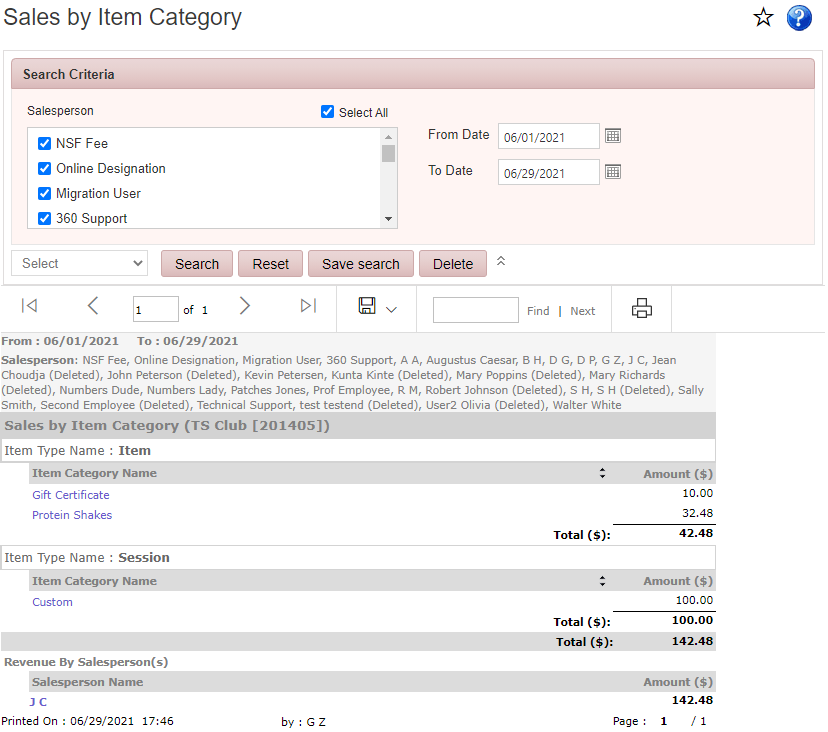
Reports > Sales Reports > Sales Report
Displays sales totals by item category for the selected date range, including total sales by category and Revenue by Salesperson.
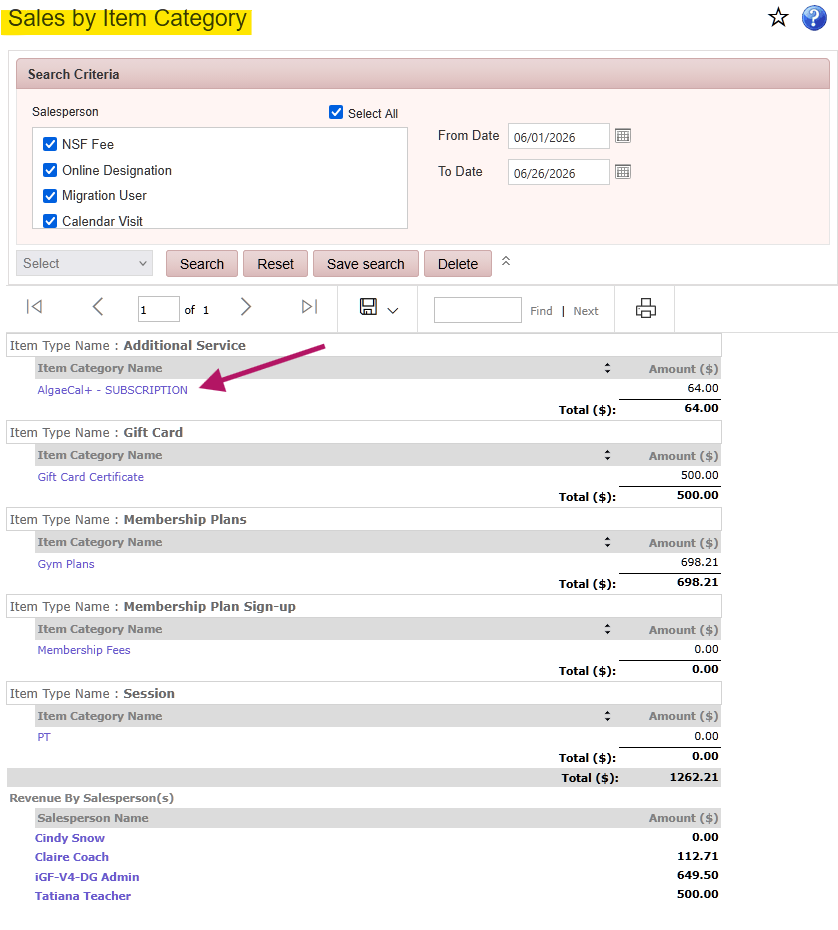
Drill down into more Sales information with Sales by Item.
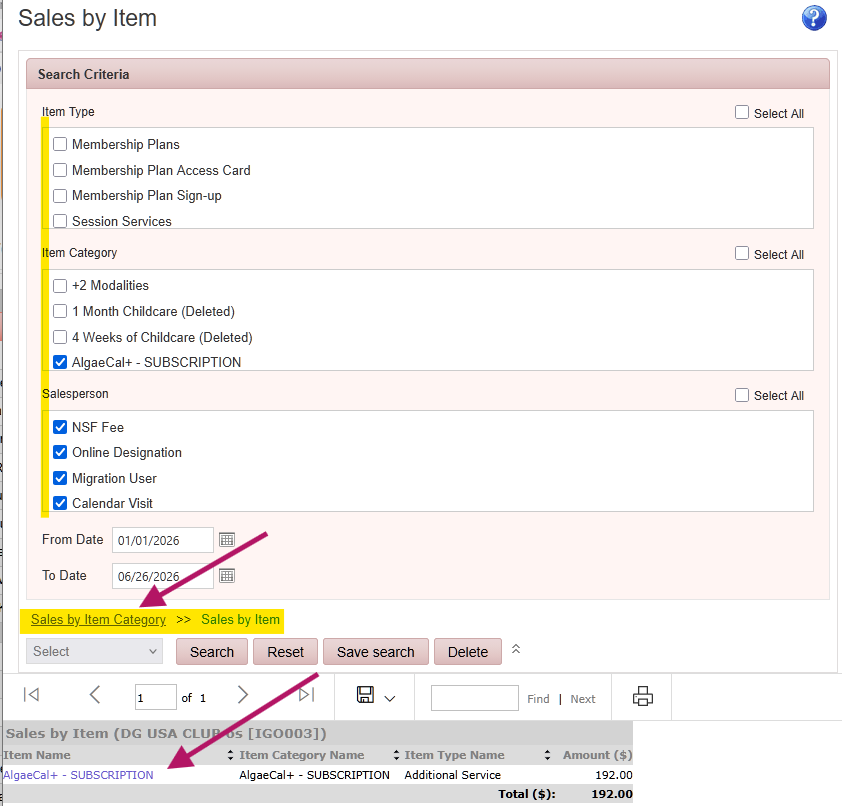
Reports > Sales Reports > Sales Report > Click an Item
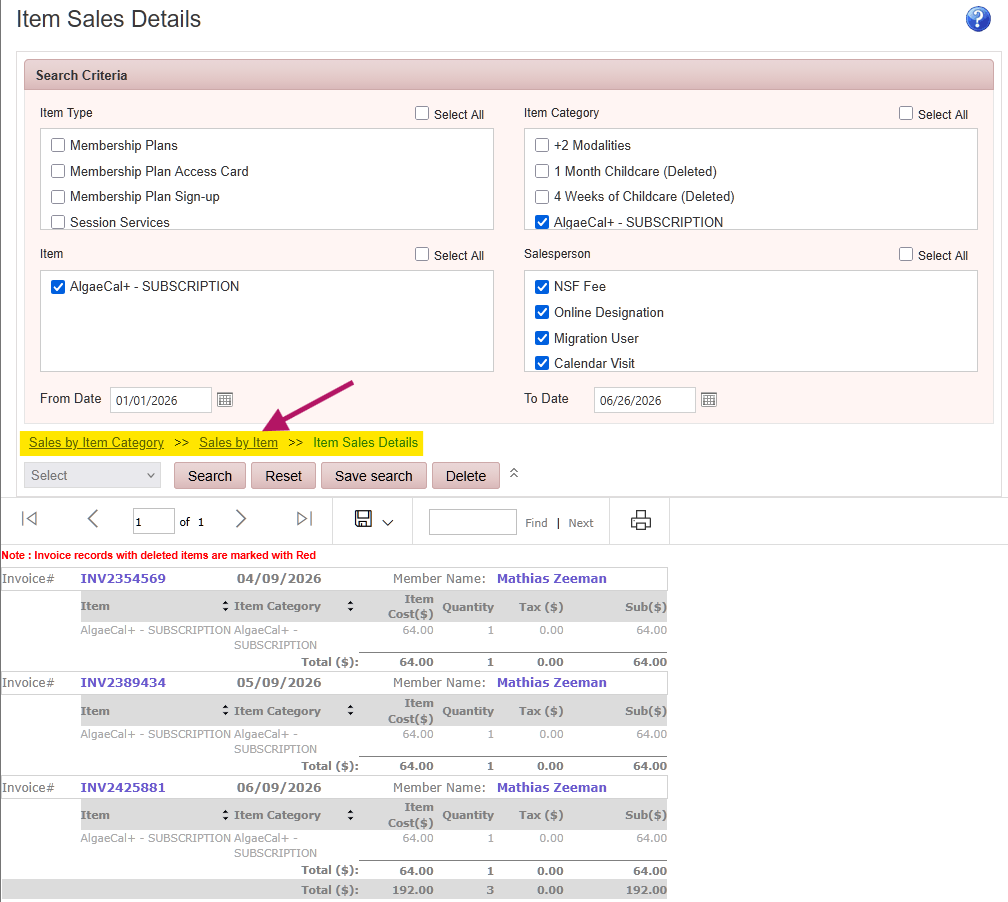
Displays sales totals by item for the selected items and date range, including total amount.
Drill down into more Sales information with Item Sales Detail.
Reports > Sales Reports > Sales Report > Click an Item
Displays invoices for each item sale including purchaser name, invoice number, date and totals, including total amount. Click Invoice number or Member Name to view member record.